 Llumo Help CenterBack to Llumo
Managing Trackable LLM Models and Cost Estimates
This process explains how to configure which LLM models are tracked in your account and how to understand the estimated monthly API costs based on your selections and tracking frequency.
Step 1: Navigate to the LLM Configuration
Go to the Setup section of your account, then open the LLMs area. Here you will see the list of all available models that can be tracked.
Step 2: Select or Deselect LLM Models to Track
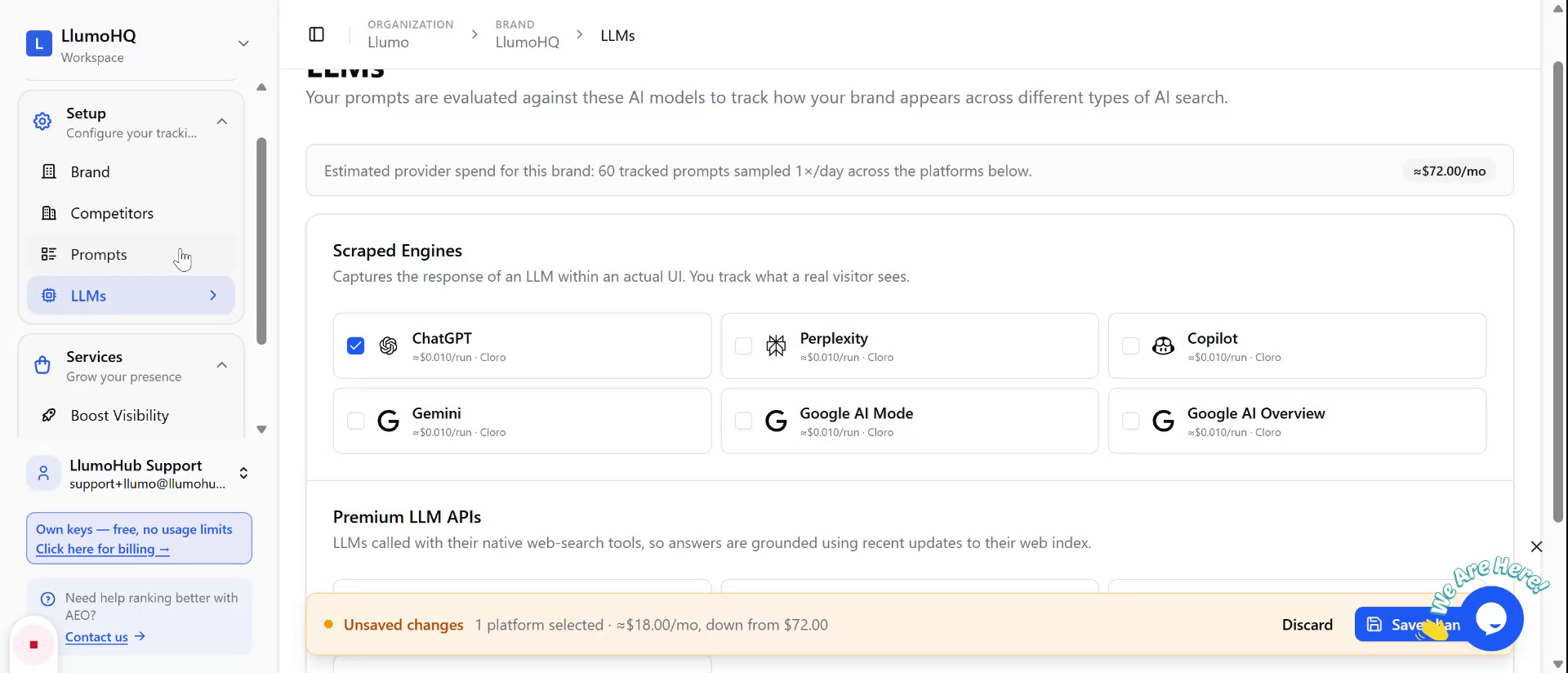
By default, most models are enabled for tracking. Use the checkboxes to tick (enable) or untick (disable) the models you want to include or exclude from tracking. This list may include both standard and premium models such as Mistral, Groq, and Claude.
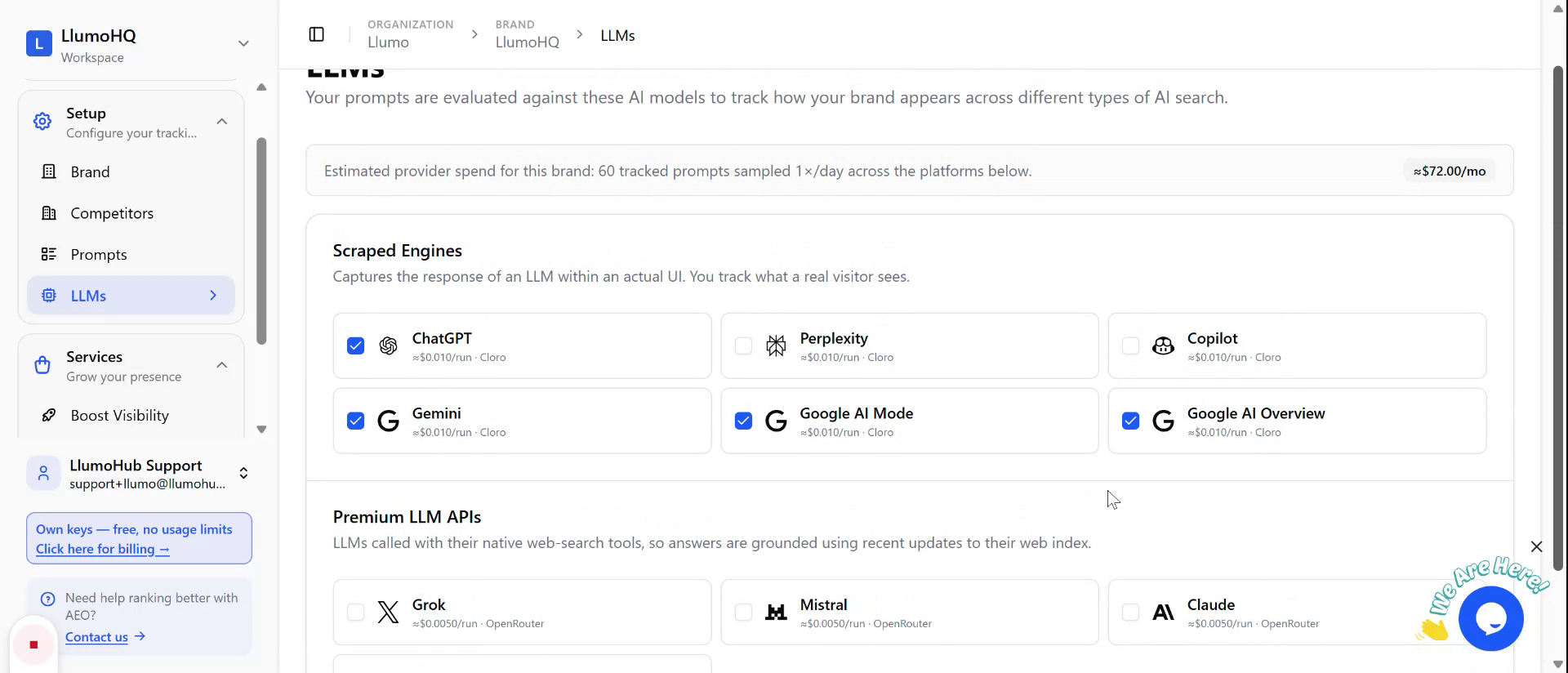
Step 3: Review Cost Estimates When Changing Model Selection
Each time you select or unselect a model, the system updates an estimated monthly API cost. In the example shown, the account is configured to run tracking once per day. When you unselect a model, the estimated monthly cost decreases accordingly.
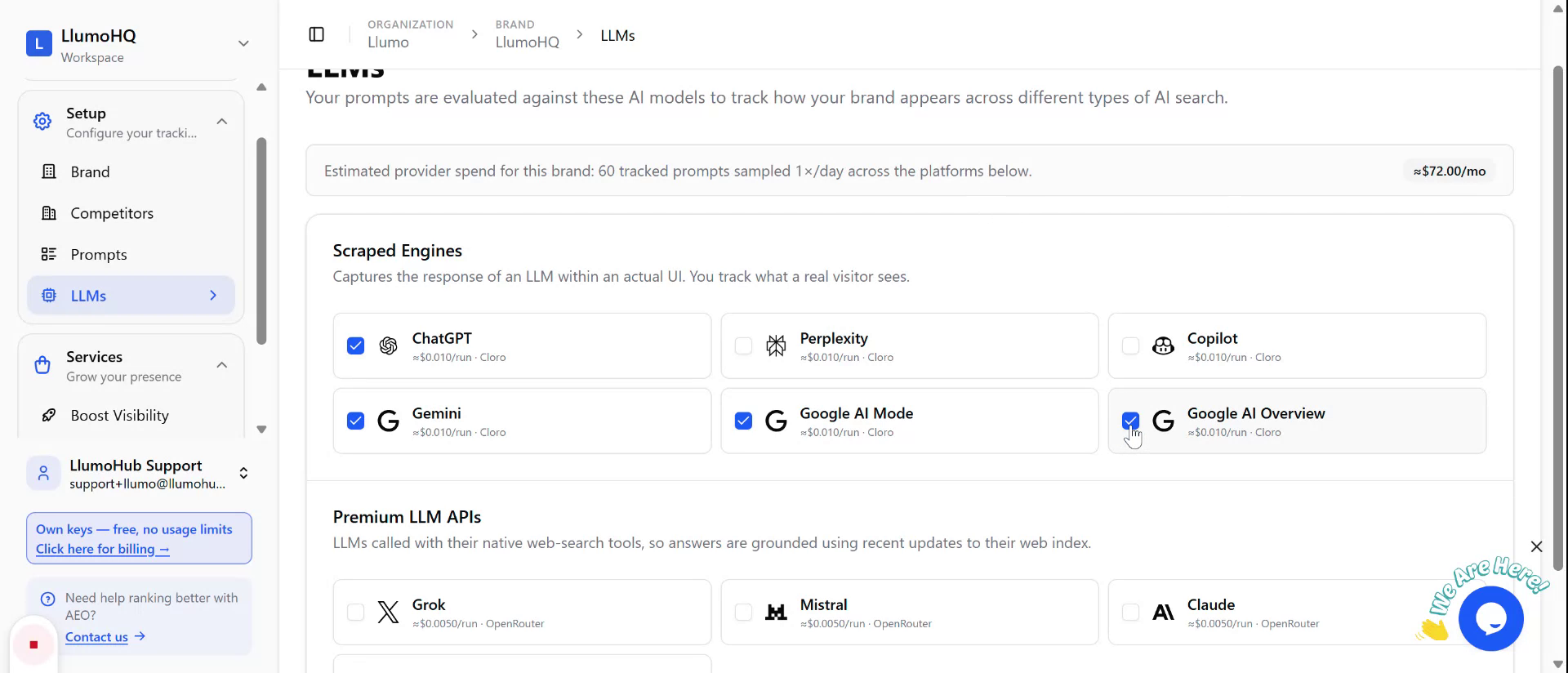
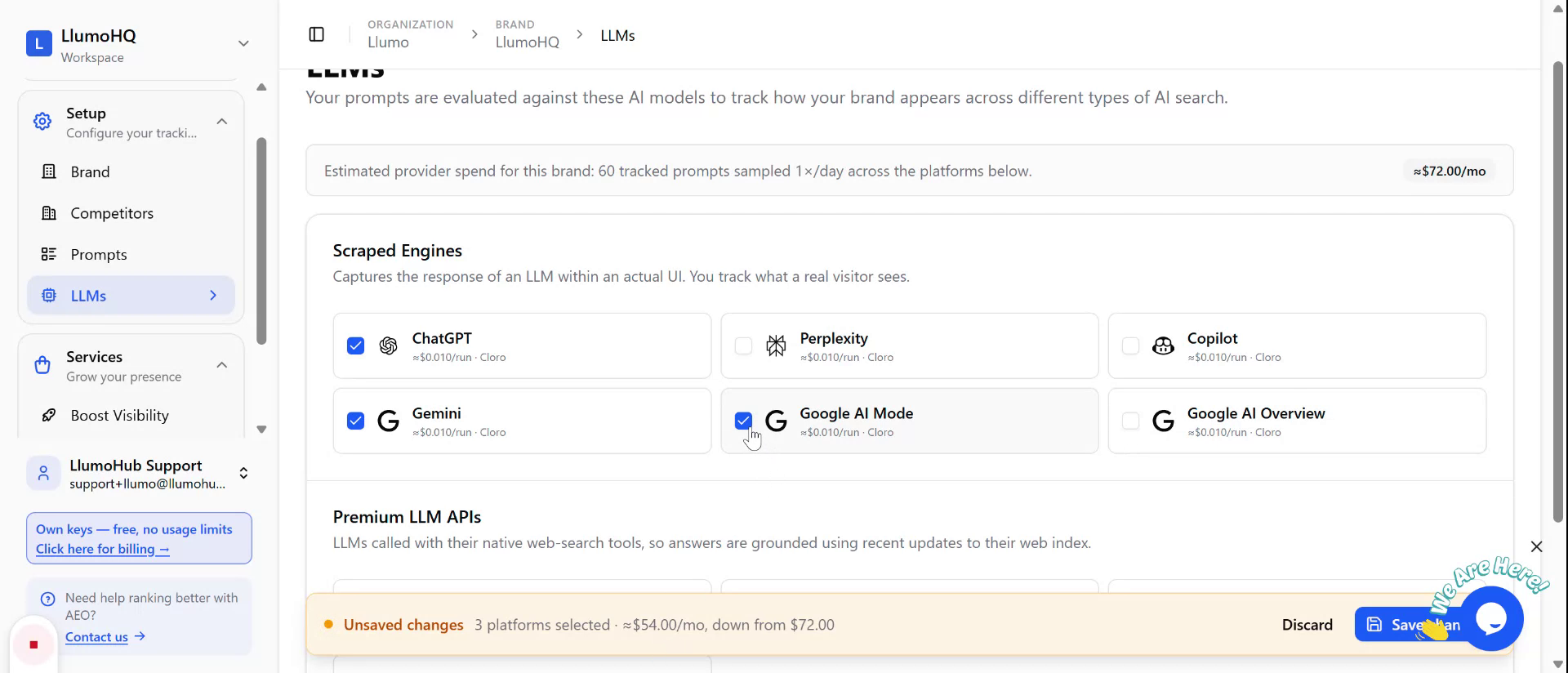
These estimates are based on current API pricing and give you a clear indication of how your model choices affect total cost.
Step 4: Configure to Track Only Specific Models (e.g., ChatGPT)
If you choose to track only a single model, such as ChatGPT, the estimator will show the corresponding cost.
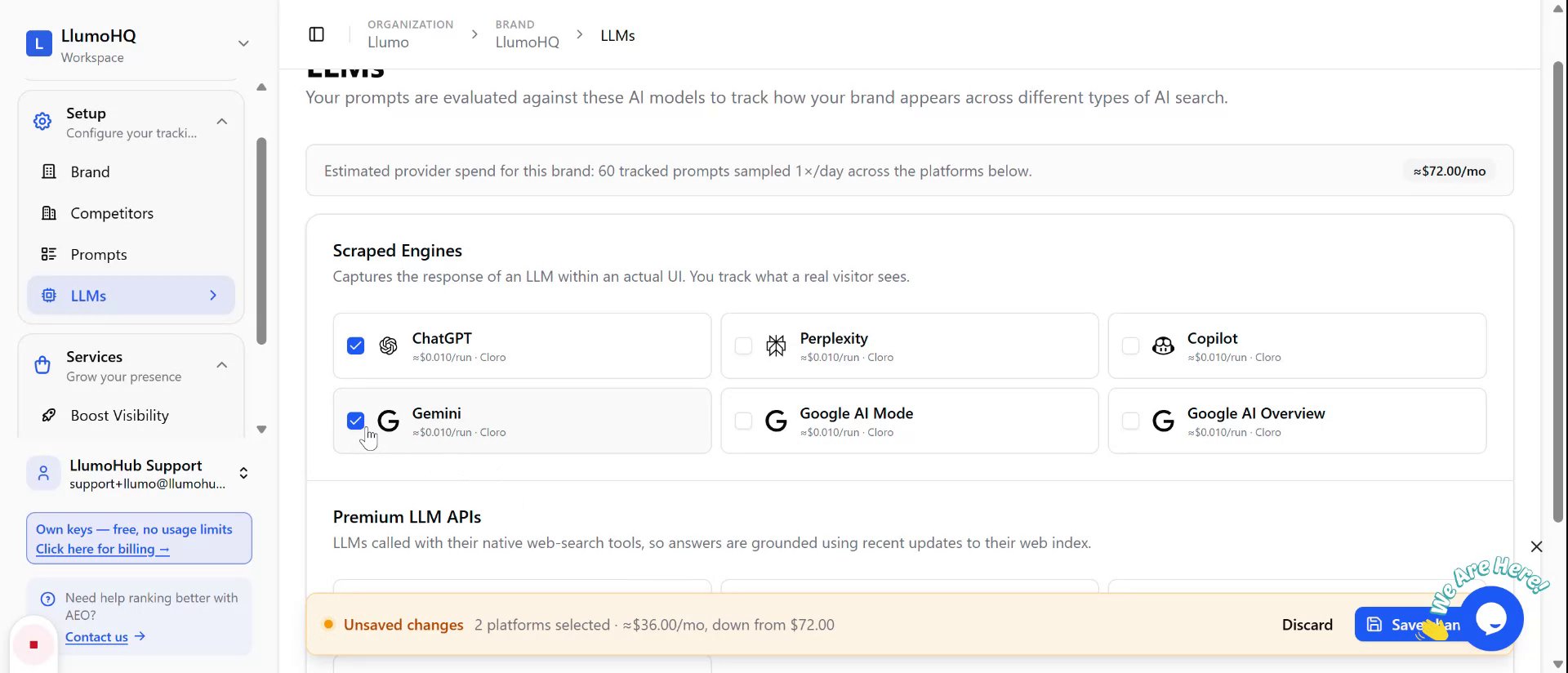
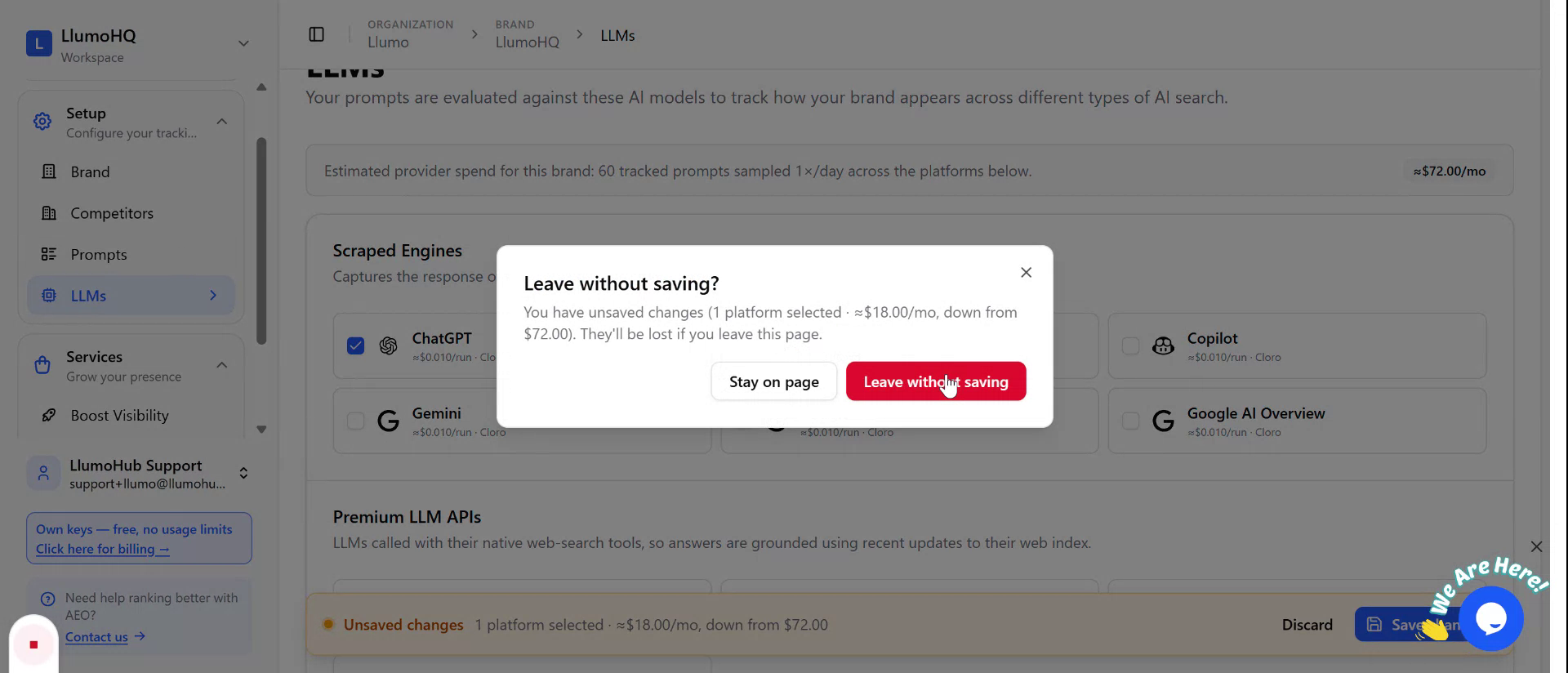
For example, tracking only ChatGPT in this configuration results in an estimated $18 per month in API costs.
Step 5: Confirm Daily Prompt Volume and Competitiveness
Review the associated prompt volume shown with the estimator. In the example, the configuration supports tracking approximately 660 prompts per day for that cost.
Use this information to balance the number of models you track, your daily tracking frequency, and your target monthly budget.