 Llumo Help CenterBack to Llumo
Visibility Tracking and Analysis
Use the Visibility section to review all tracked terms, filter and search through them, and inspect detailed mentions, queries, and raw responses for deeper analysis.
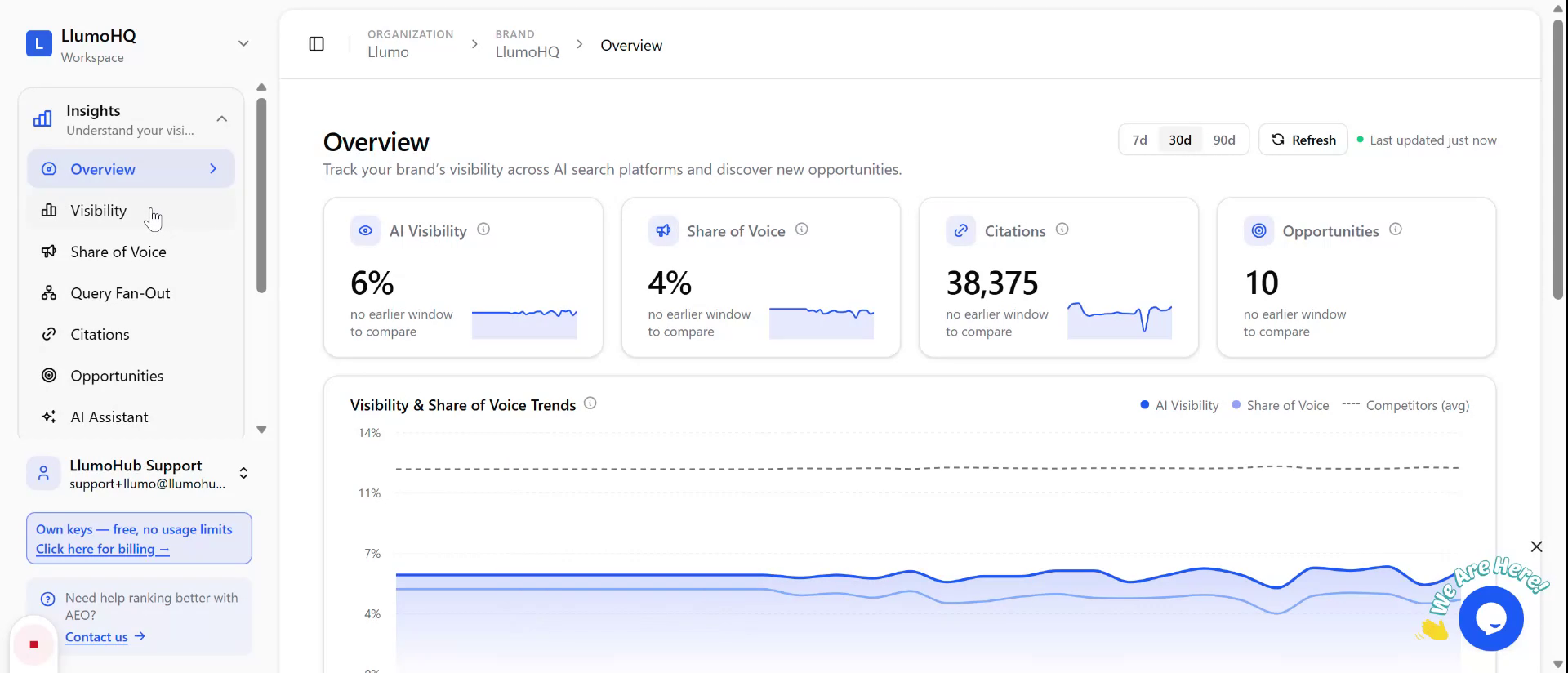
Step 1: Open the Visibility Section
In the application, navigate to the Visibility section to access all of your tracked terms.
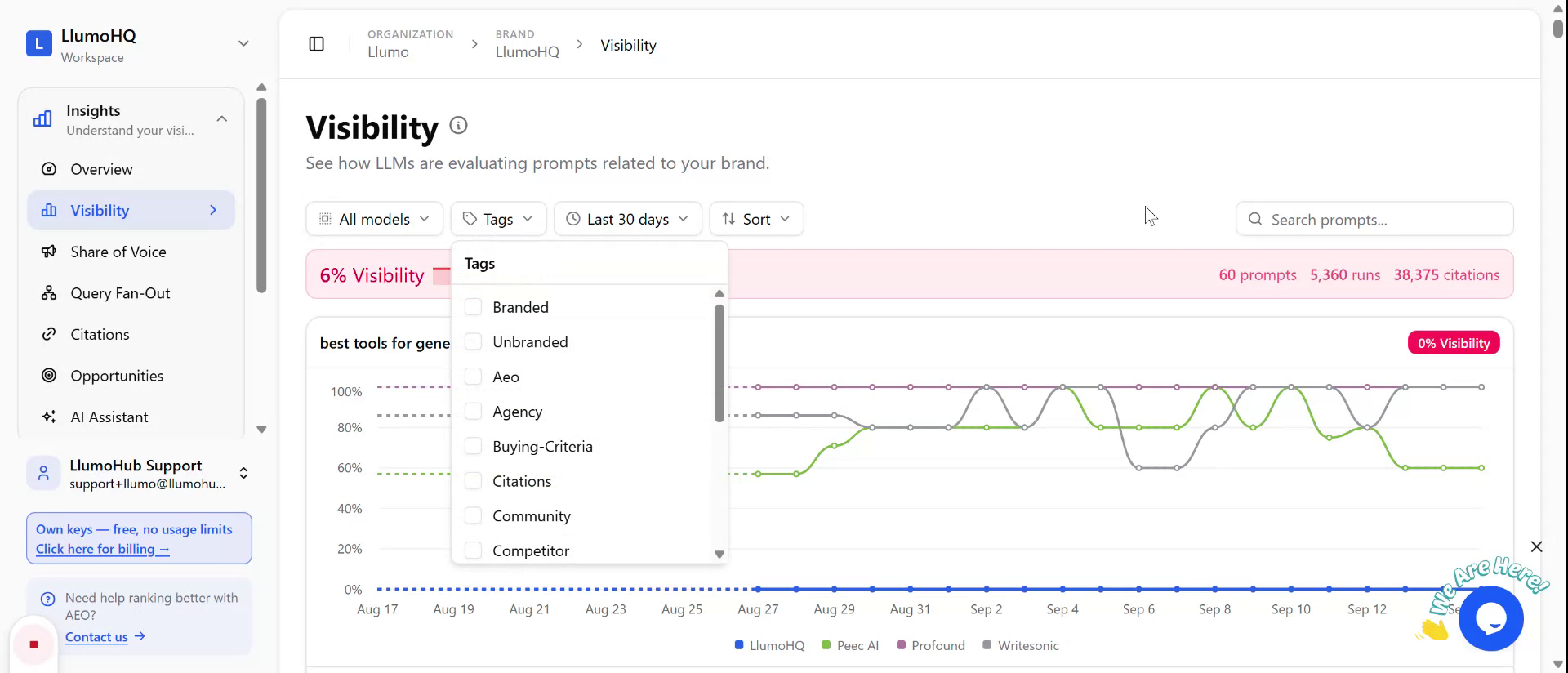
Step 2: Filter Tracked Terms
Use the filters at the top of the Visibility section to refine the list of tracked terms:
- Filter by model.
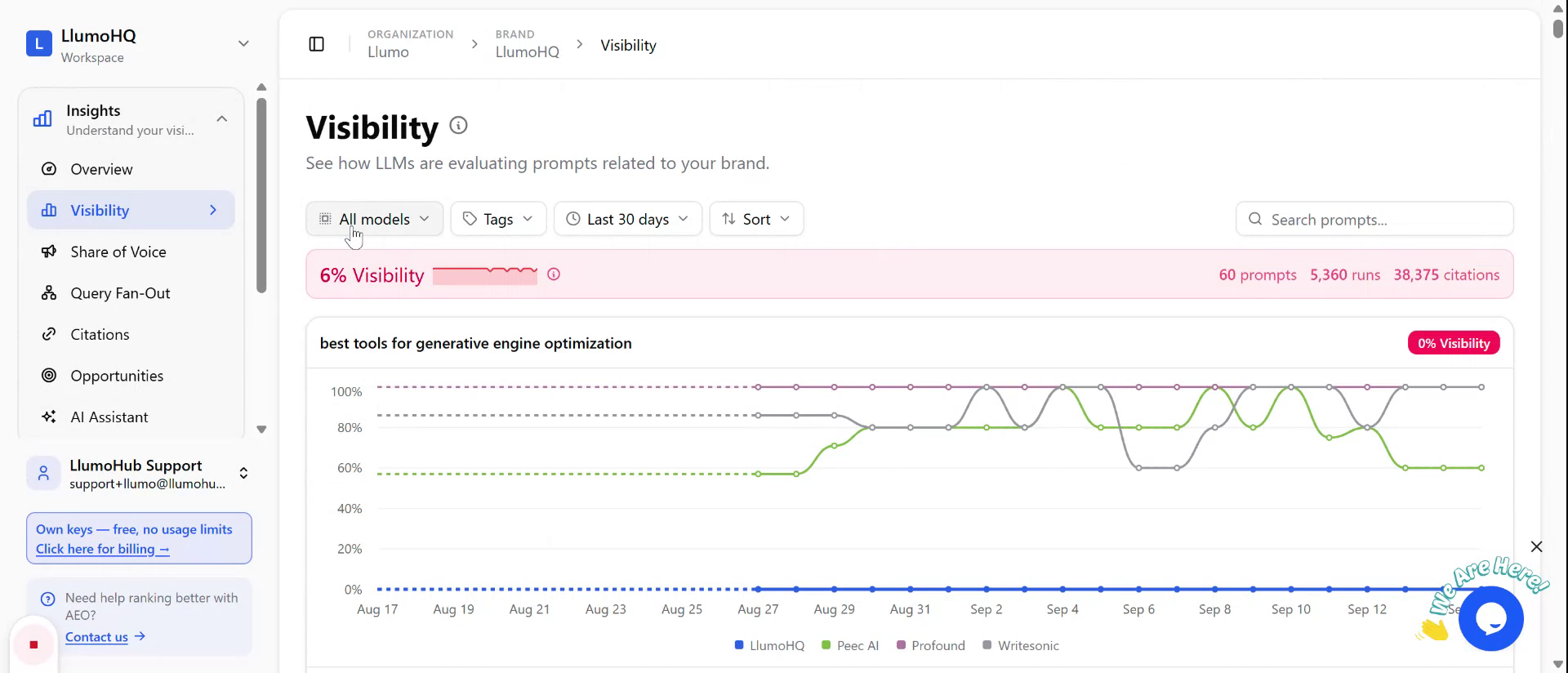
- Filter by tags.
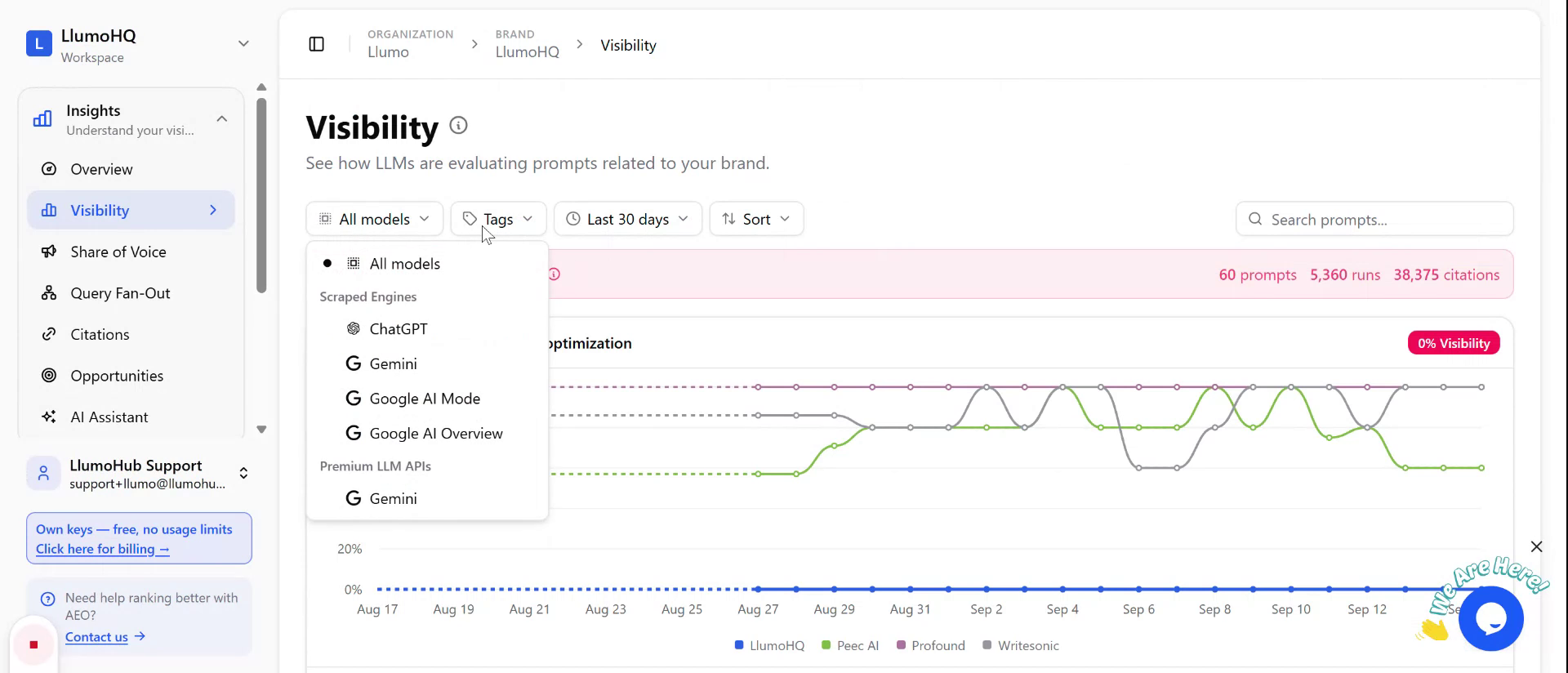
- Filter by date.
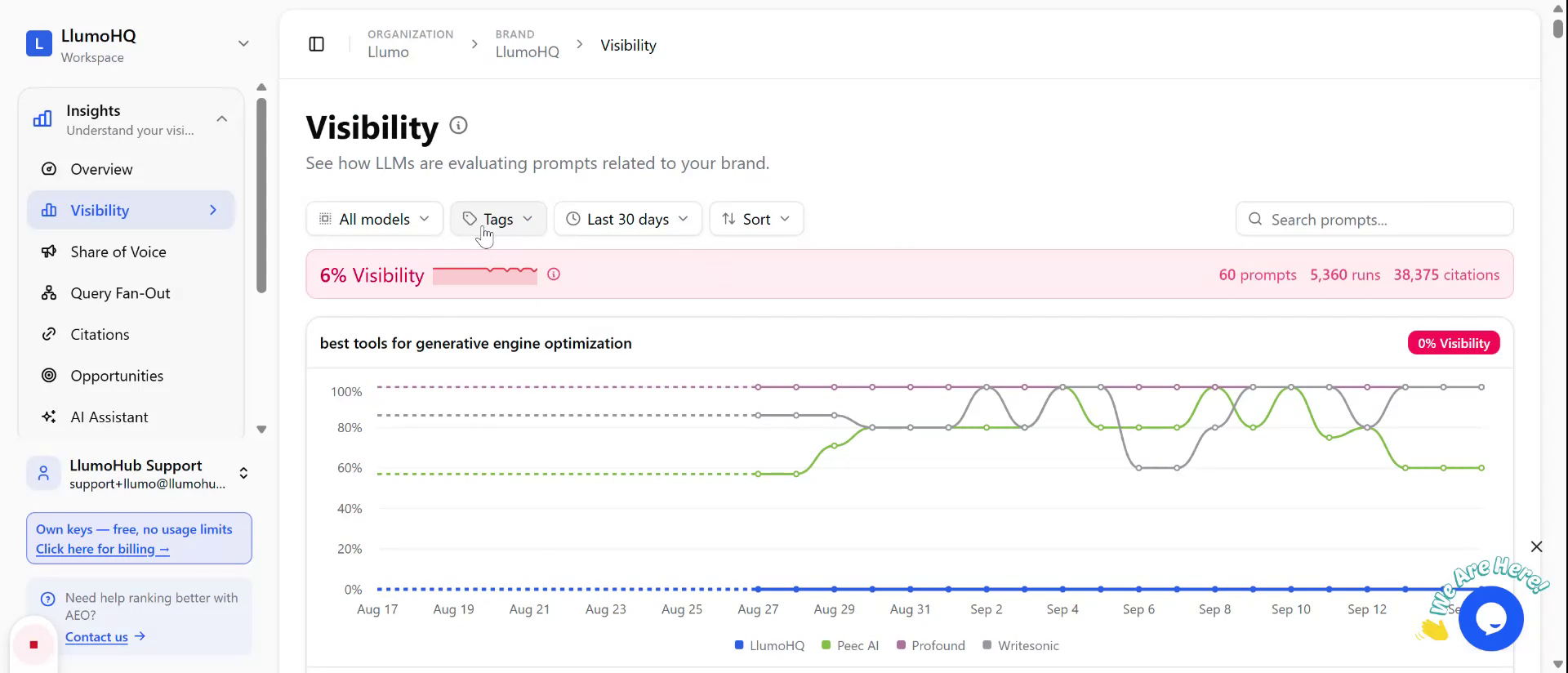
You can also use the search bar to search through prompts by keyword.
Step 3: View or Export Tracked Term Data
From the list of tracked terms, you can:
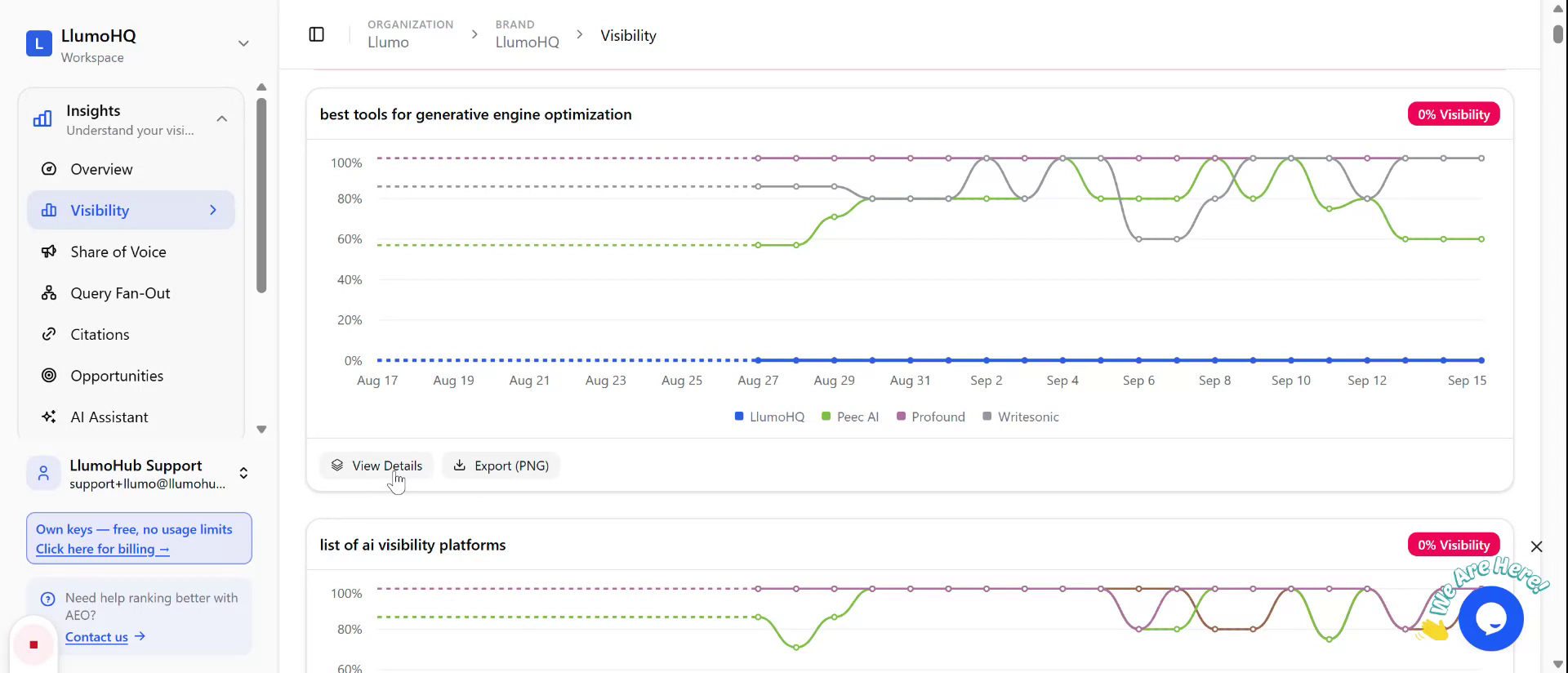
- Select an individual term to view its details, or
- Export the data as a PNG for reporting or sharing.
Click on View details for a specific term to continue.
Step 4: Review Mentions, Queries, and Citations
Within the term details view, you can see:
- Mentions of competitors and other entities associated with the term.
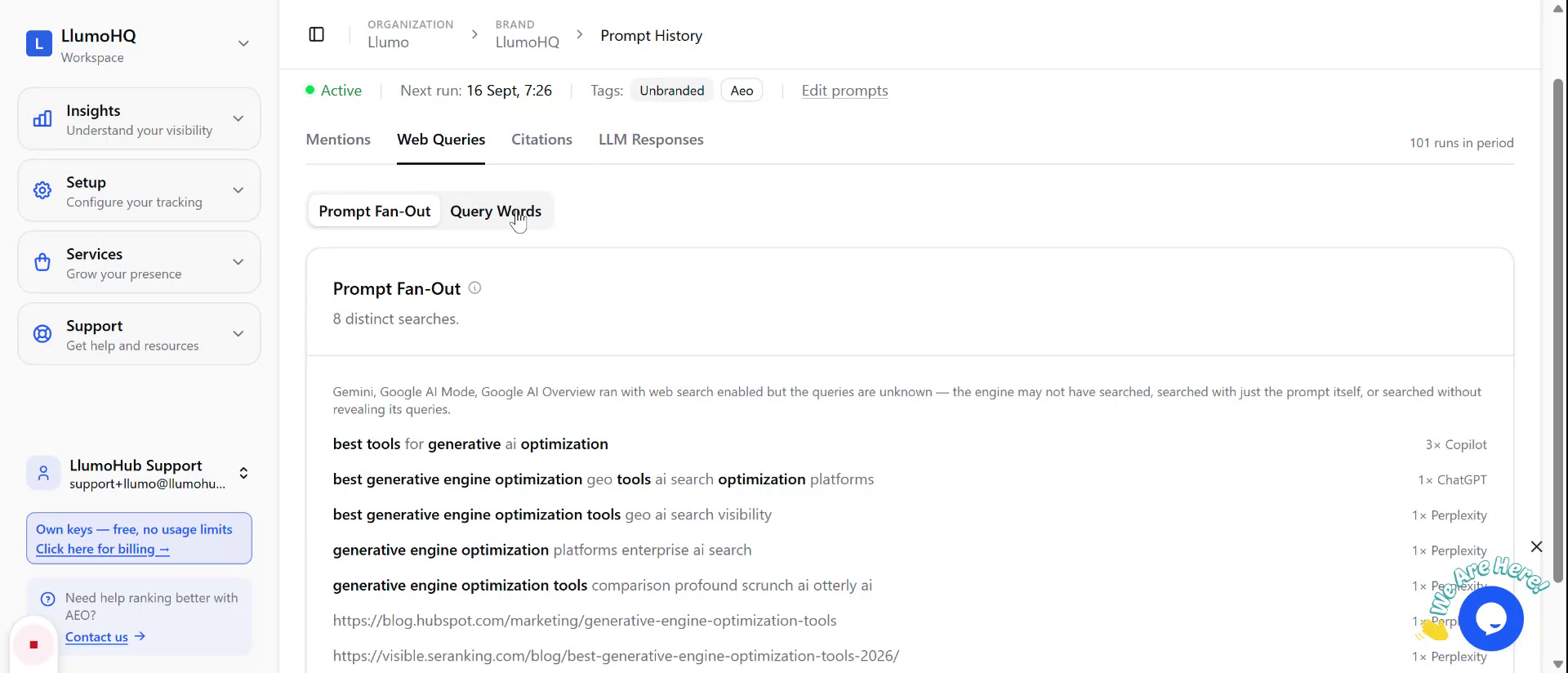
- The web queries generated by the prompt fanout.
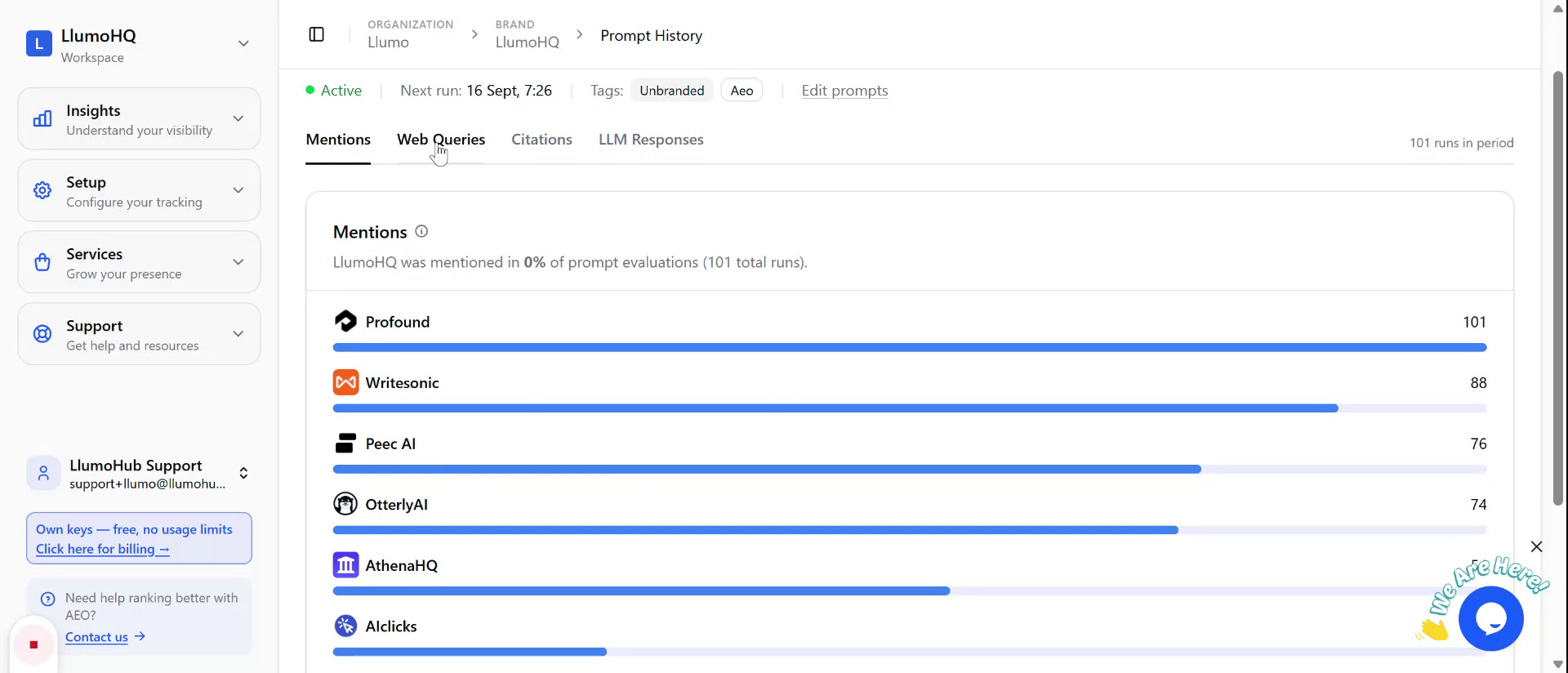
- The specific query words that are generated for each individual response.
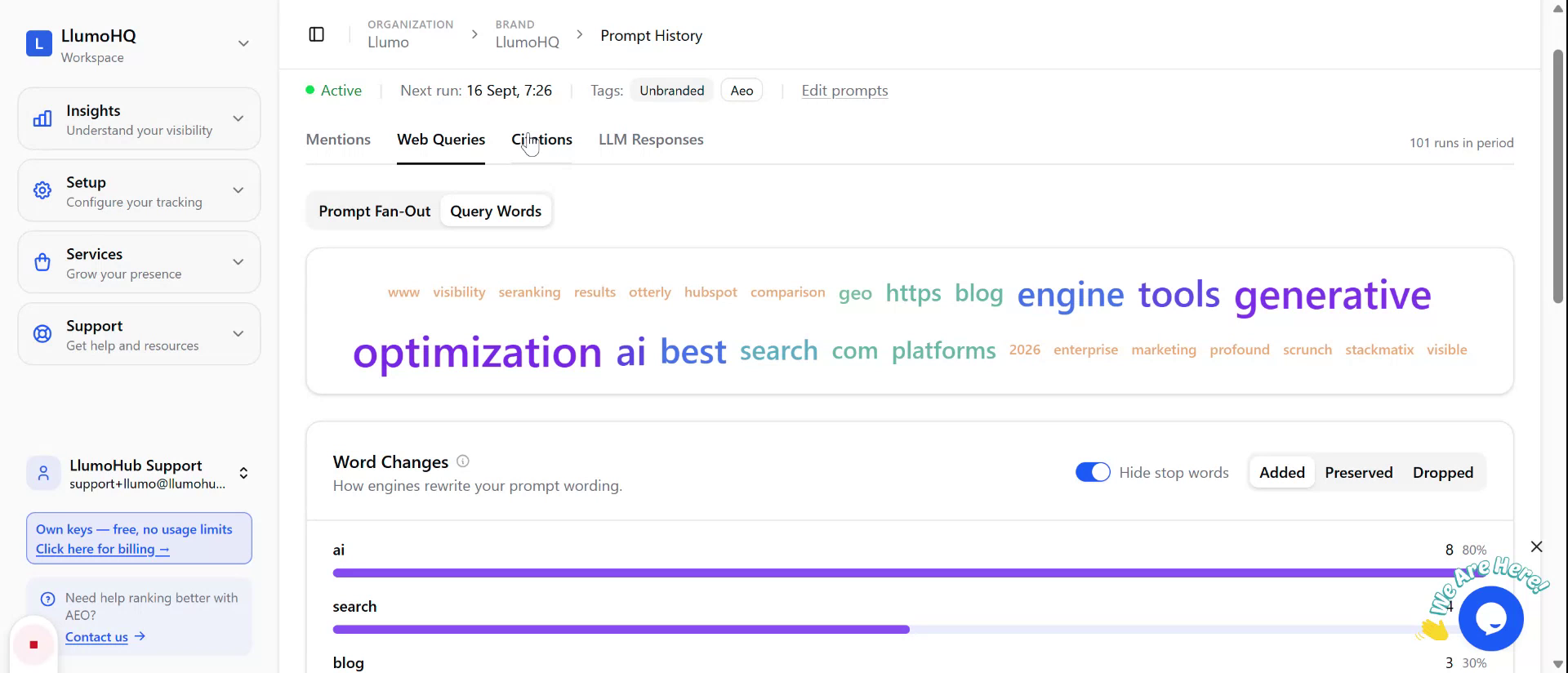
- The associated citations that support the responses.
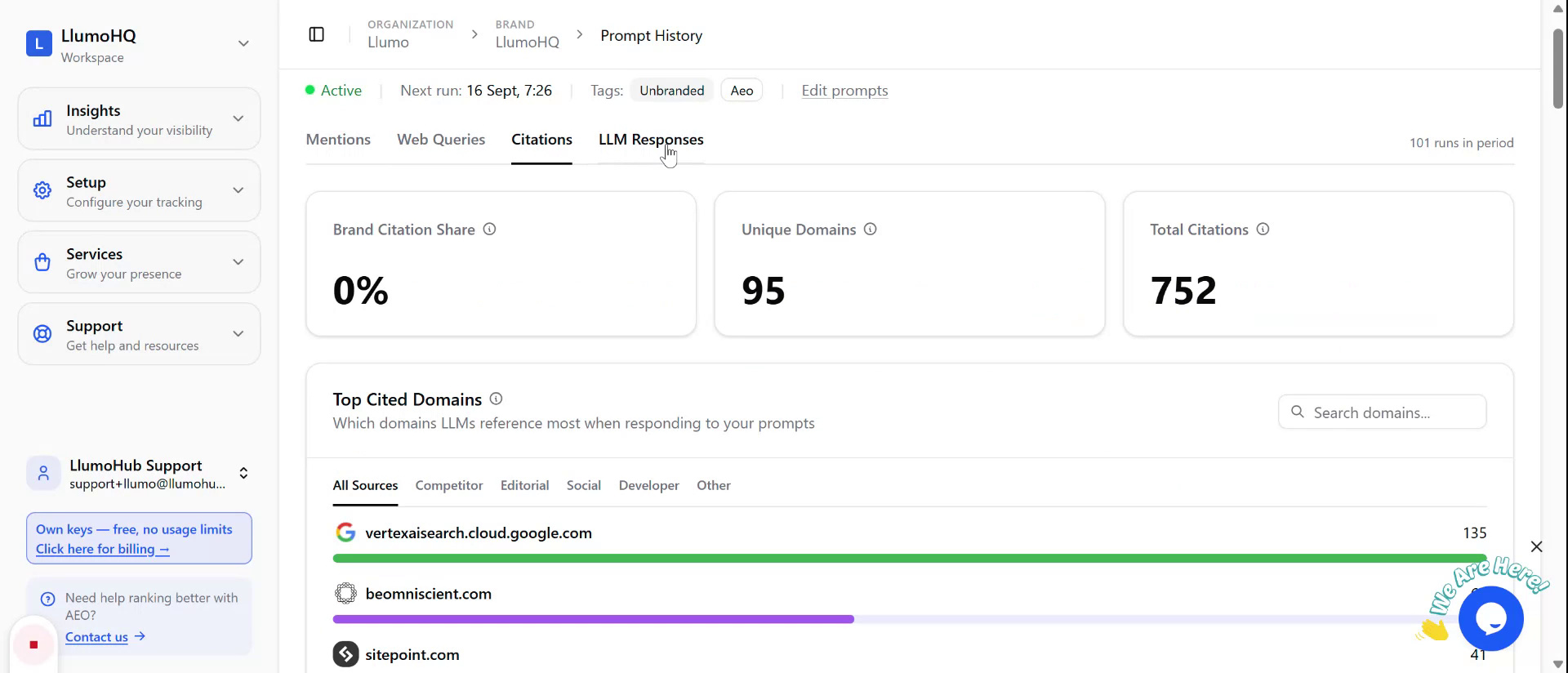
If you want to see the raw responses, open the raw responses section; all underlying responses are available there.