 Llumo Help CenterBack to Llumo
Managing Brands in the Application
This document explains how to view, add, and delete brands within the application. Follow the steps below to navigate to the brand section, create a new brand, and remove an existing one when needed.
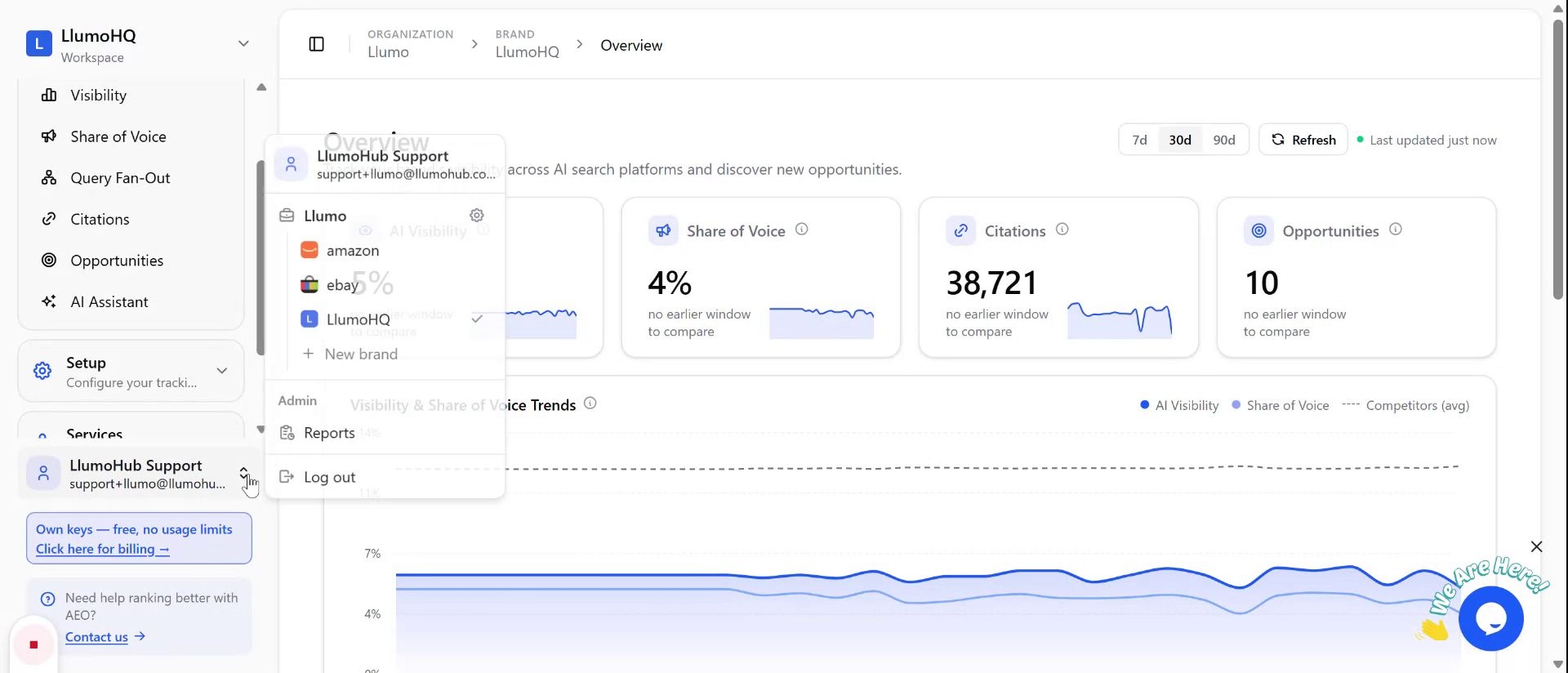
Step 1: Open the Brands Section
Click on the Brands section in the application to view the list of existing brands.
Step 2: Add a New Brand
Select the New Brand option to create a new brand.
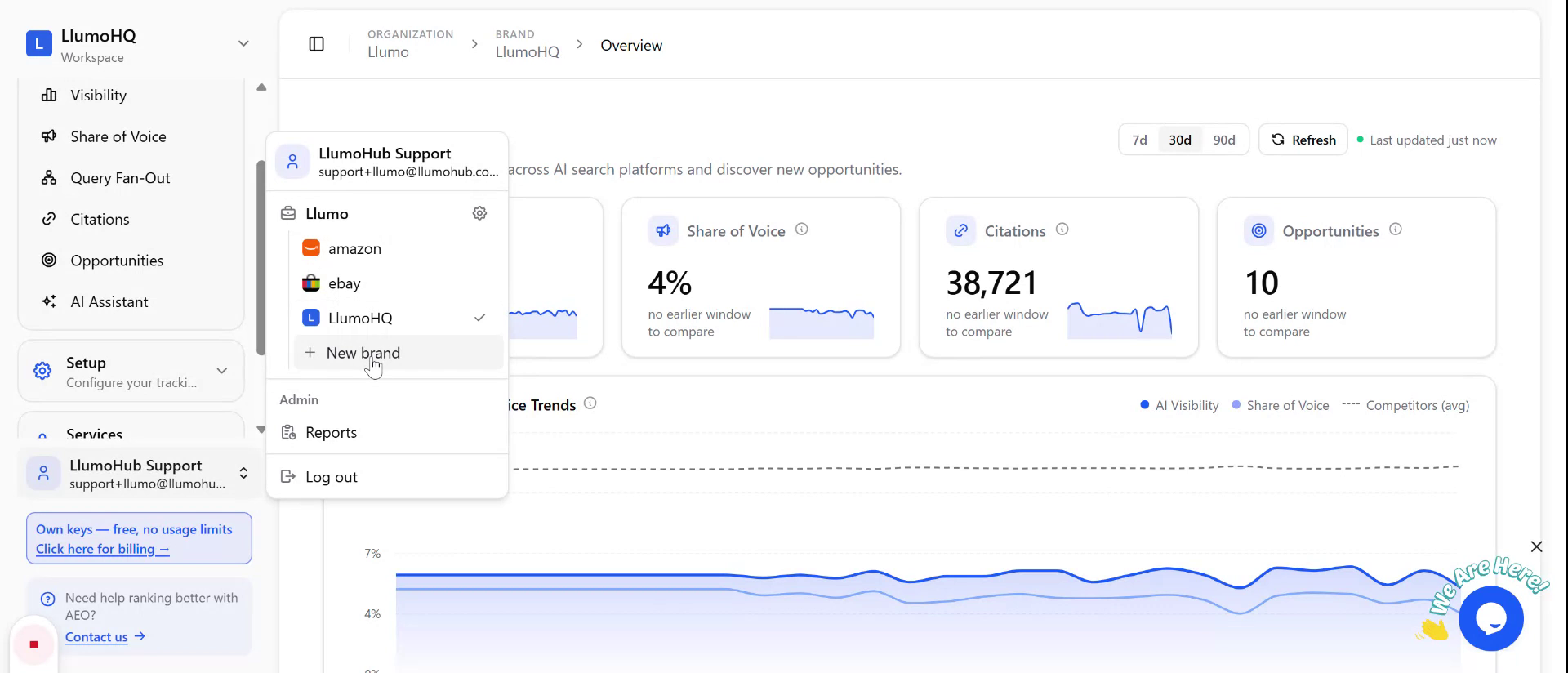
On the screen that appears, enter the required brand information and continue through the prompts to complete the creation process.
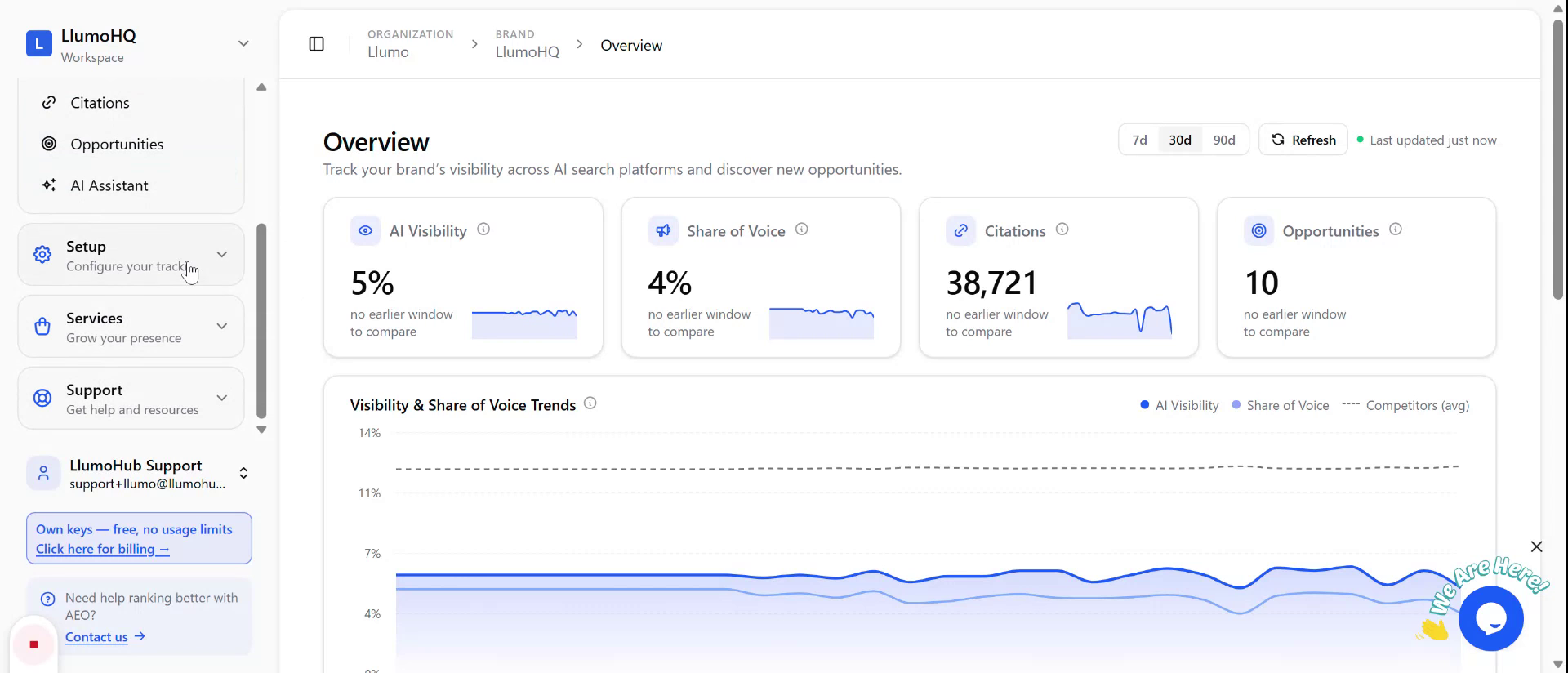
Step 3: Navigate to Brand Setup for Deletion
To delete a brand, open the Setup menu.
From the Setup options, select Brand to access the list of configured brands.
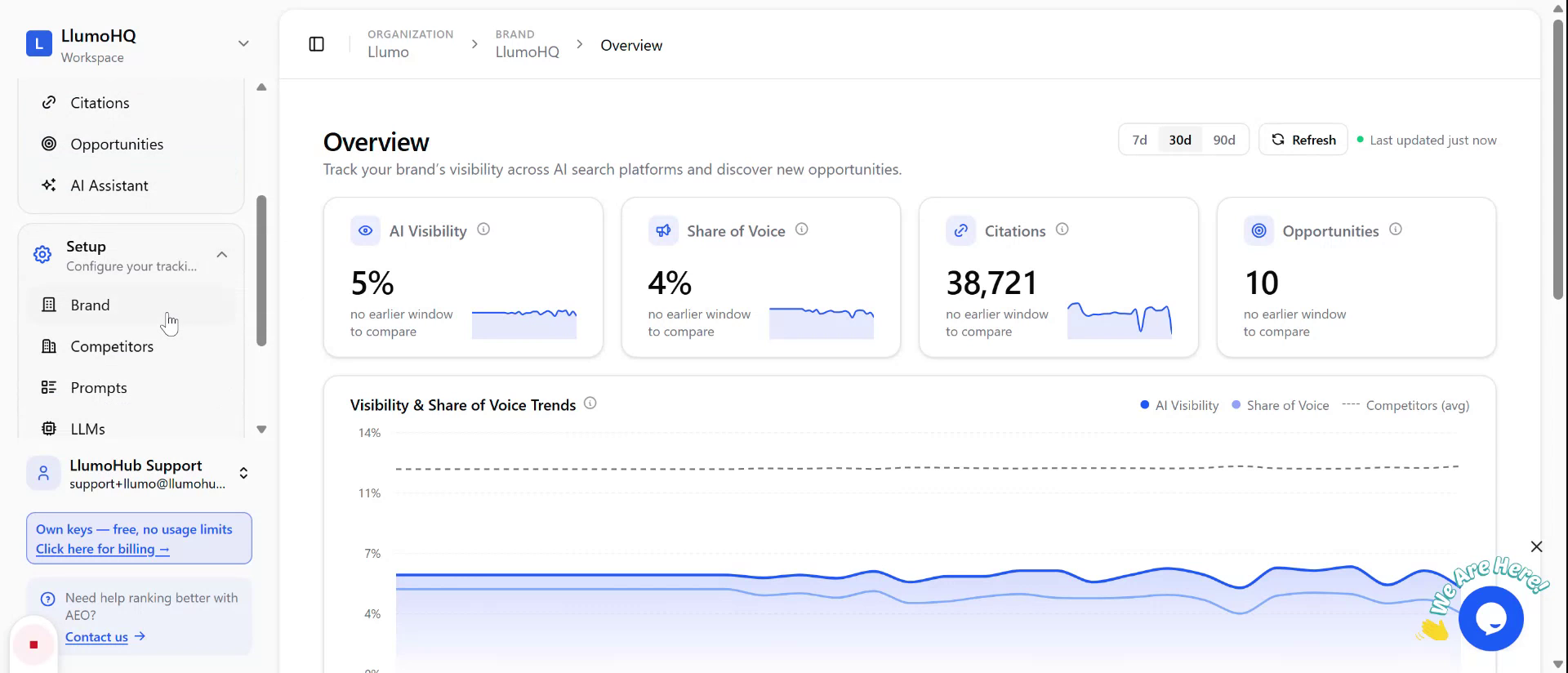
Step 4: Delete an Existing Brand
In the Brand setup screen, scroll to the bottom of the list of brands. Locate the brand you want to remove and use the delete option provided there to delete the selected brand.