 Llumo Help CenterBack to Llumo
Accessing and Using the API and MCP
This document explains how to access the API and MCP configuration area, view available documentation, and create an API key with appropriate permissions and brand access.
Step 1: Open Brand Appearance Settings
Click on your brand appearance area in the platform’s interface.
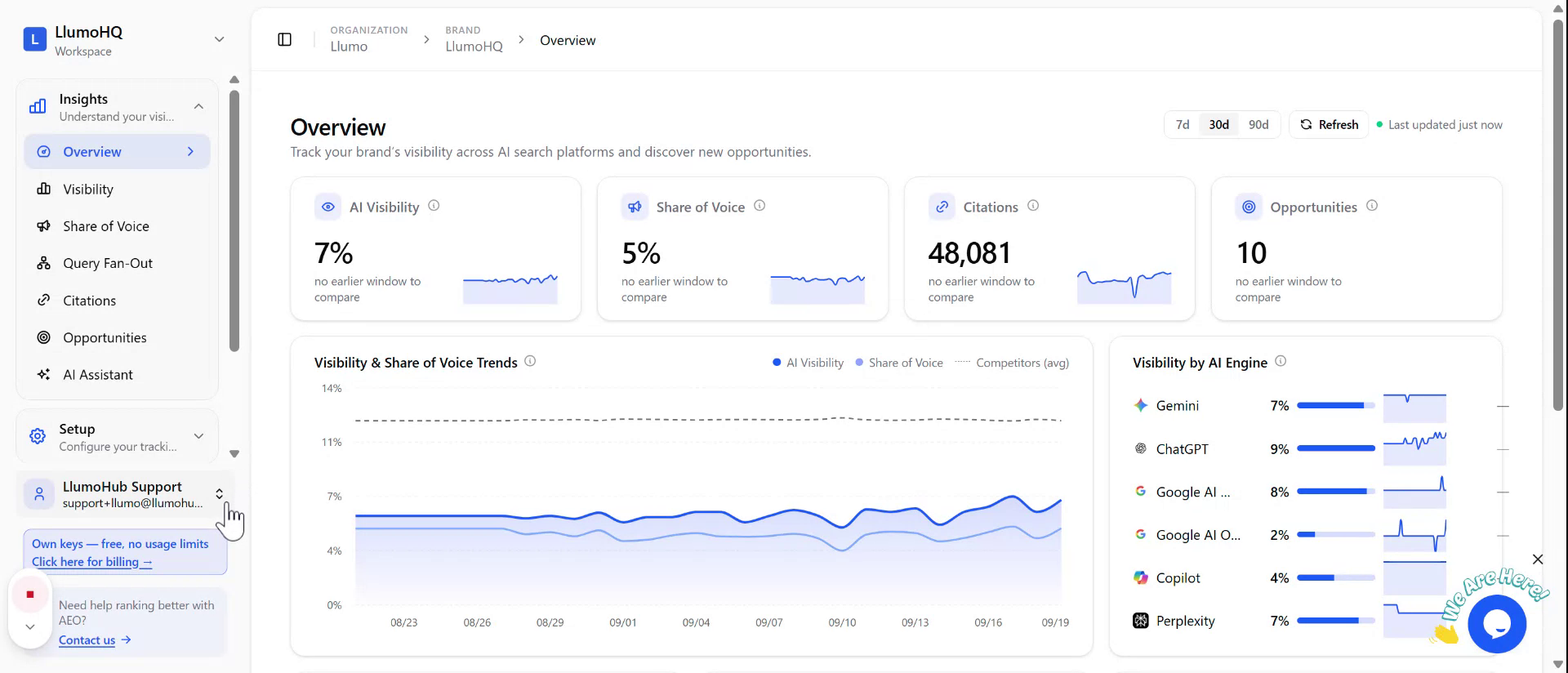
At the top of the screen, click Settings.
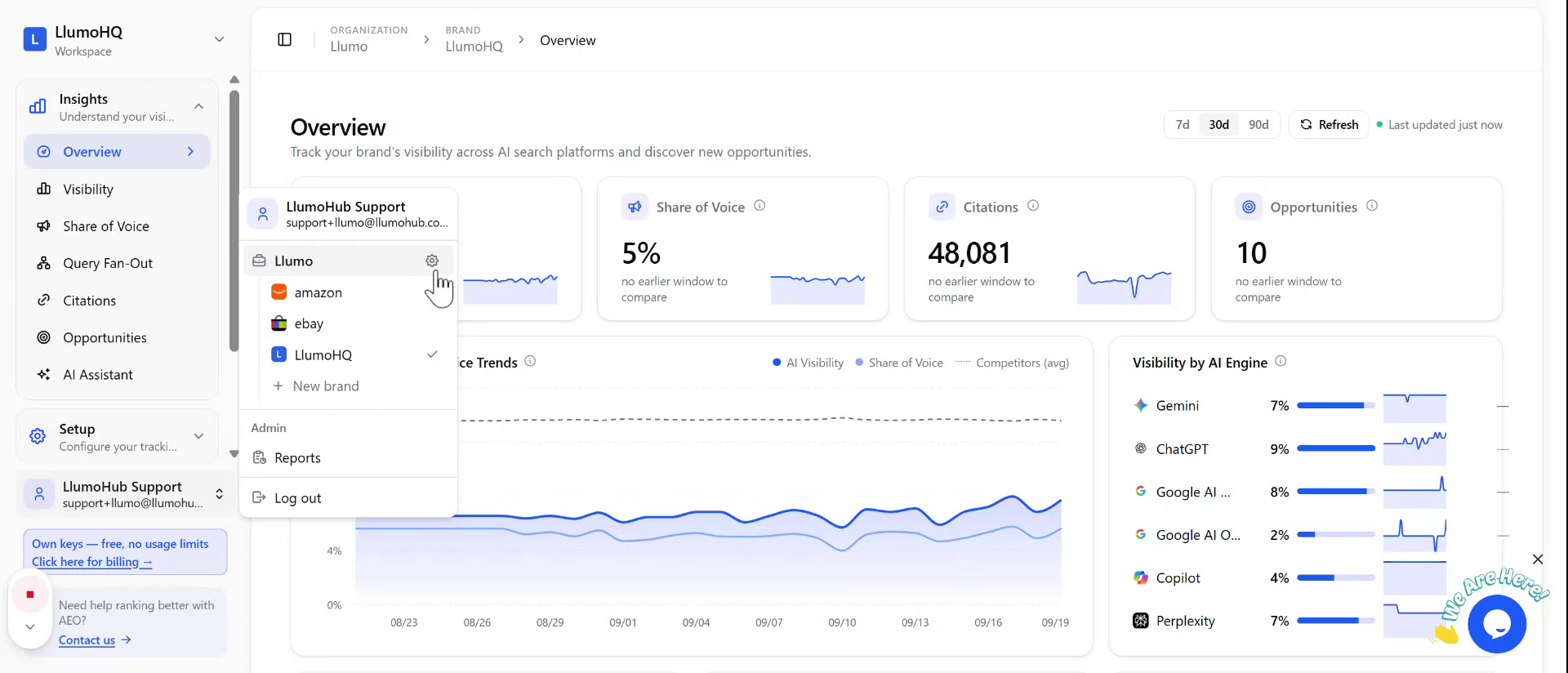
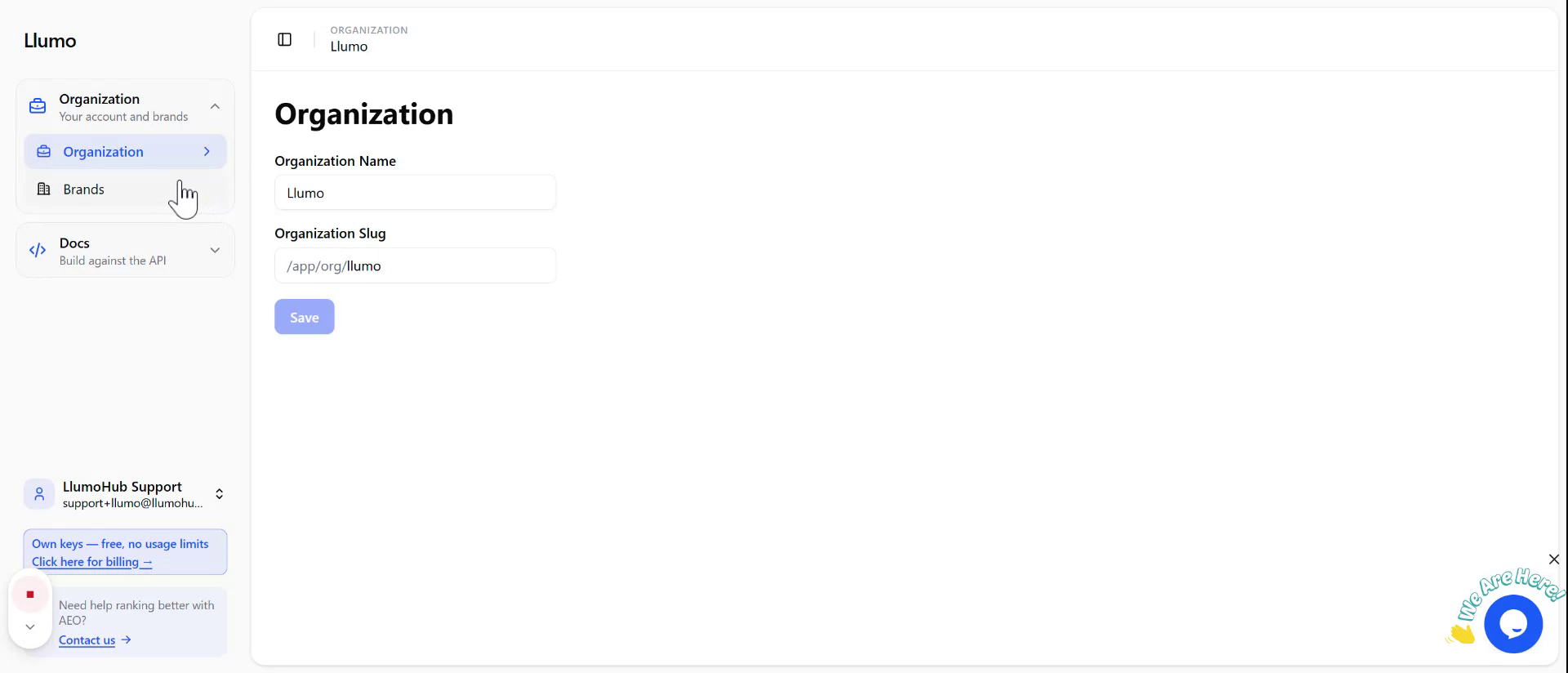
This section displays your Organization details,
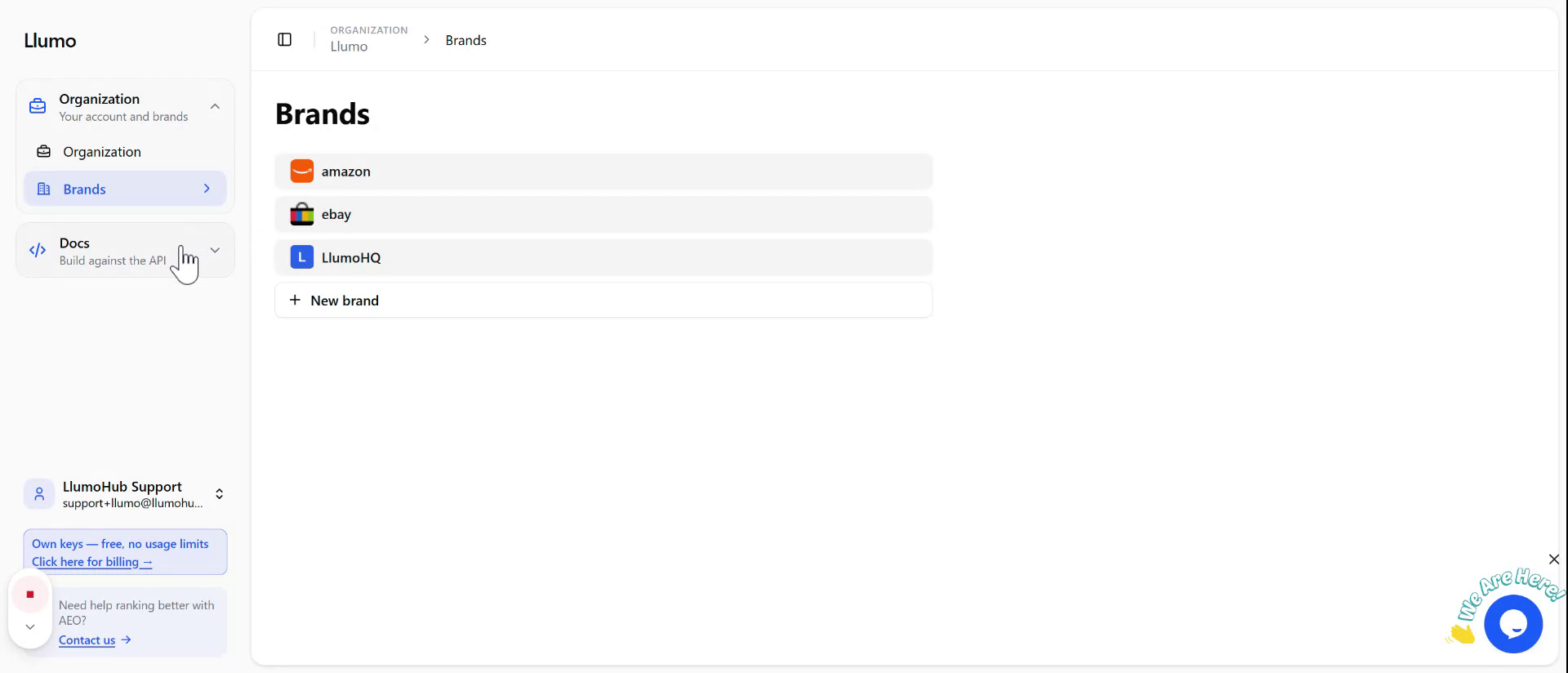
your Brands,
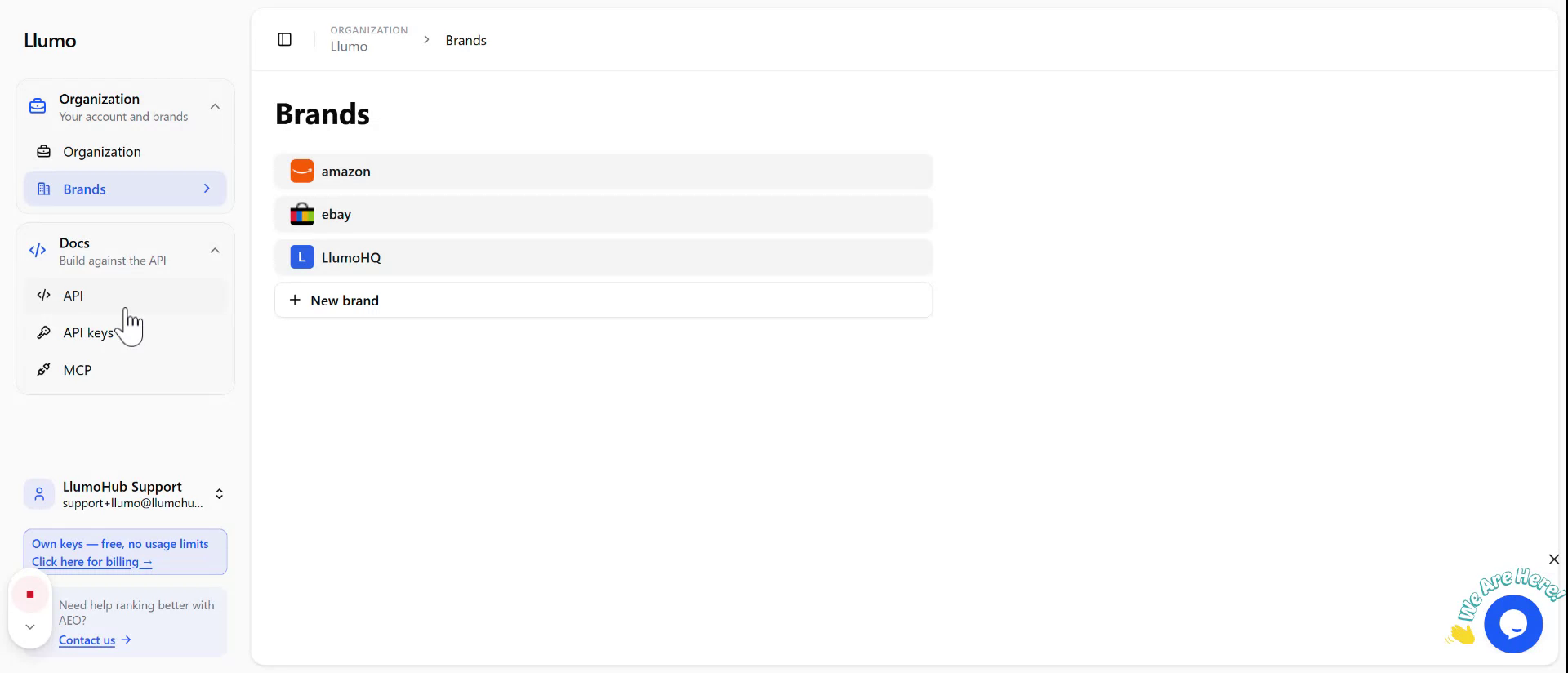
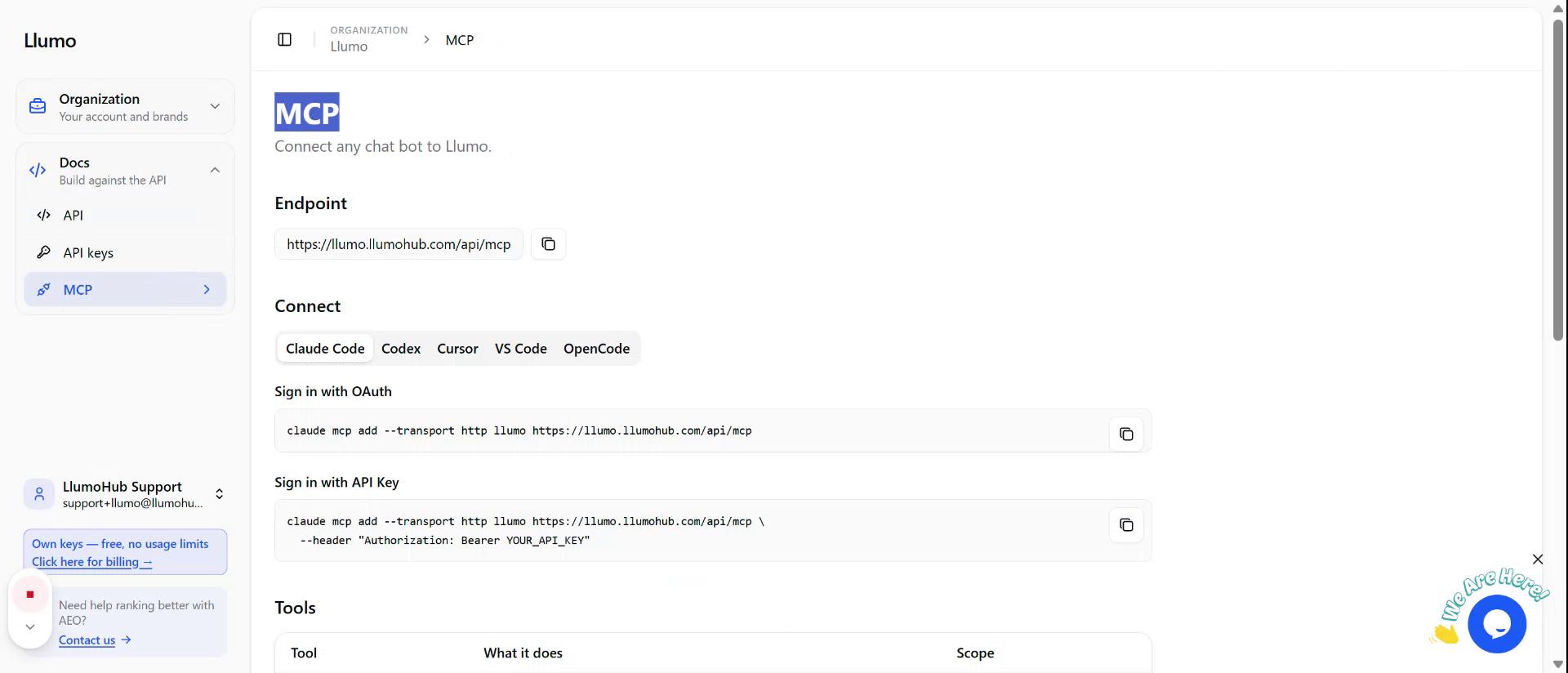
and under Docs you will find API, API Keys, and MCP.
Step 2: Review API Documentation and MCP Options
Click on API to open the API documentation. Here you can see how to perform query, GET, POST, and PATCH operations, all available via OpenAPI.
You also have access to MCP, which allows you to connect tools such as CloudCode, Codex, Cursor, and OpenCode
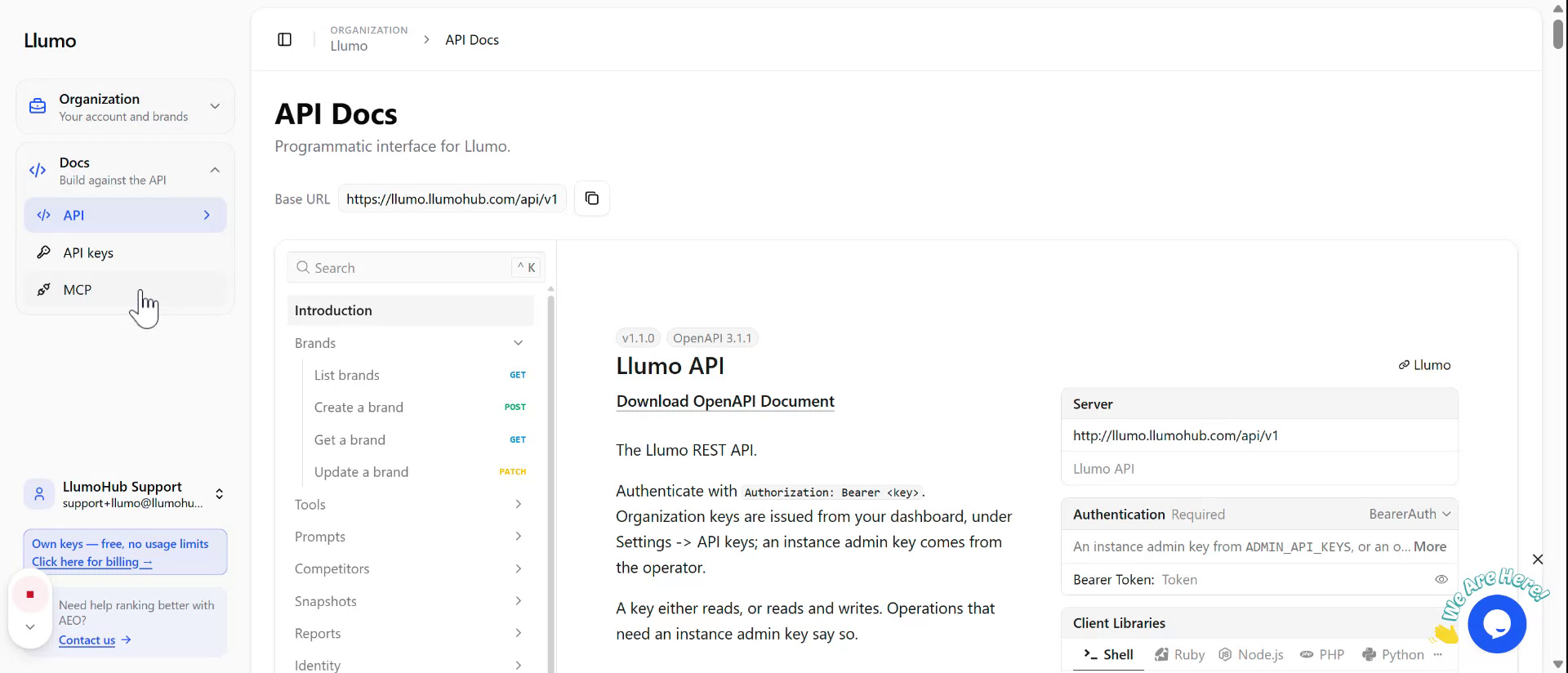
to the platform so you can interact with your metrics and visibility data.
Step 3: Create a New API Key
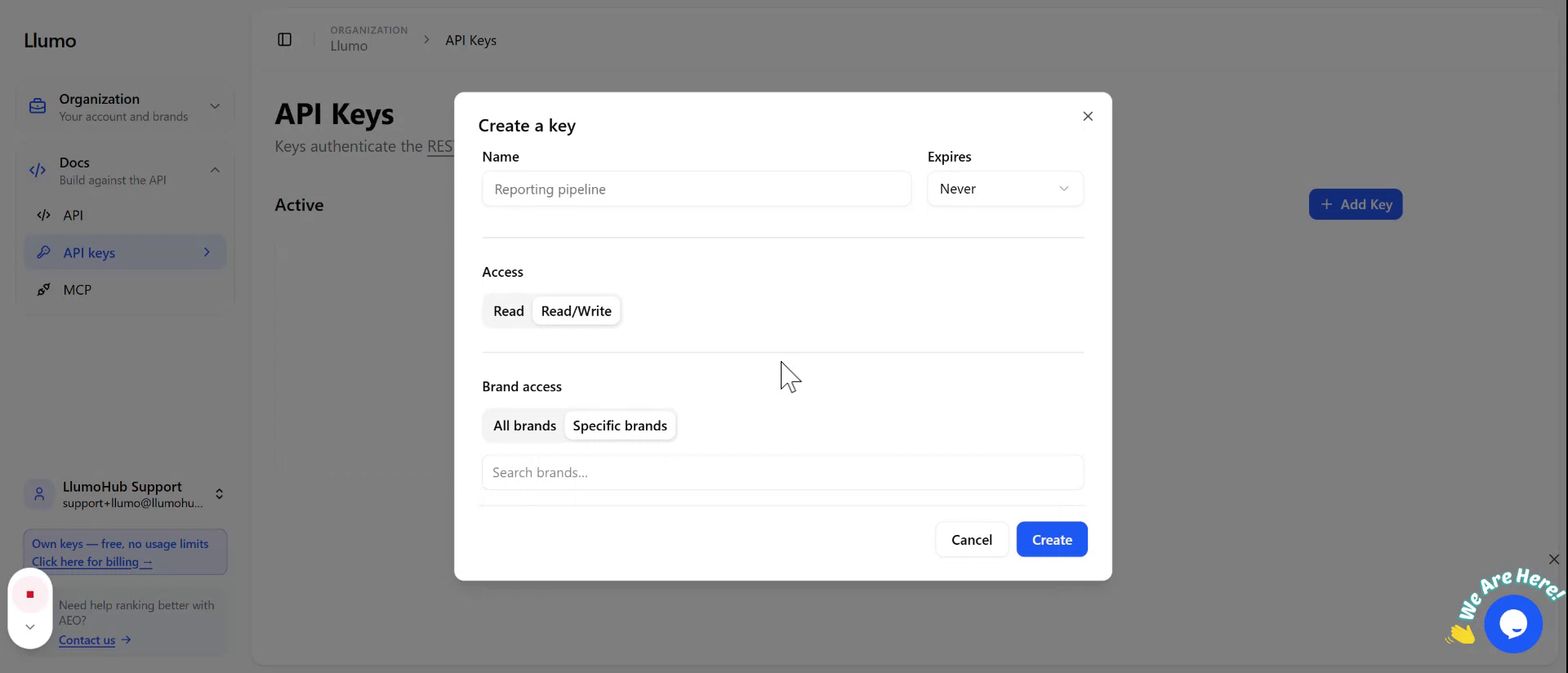
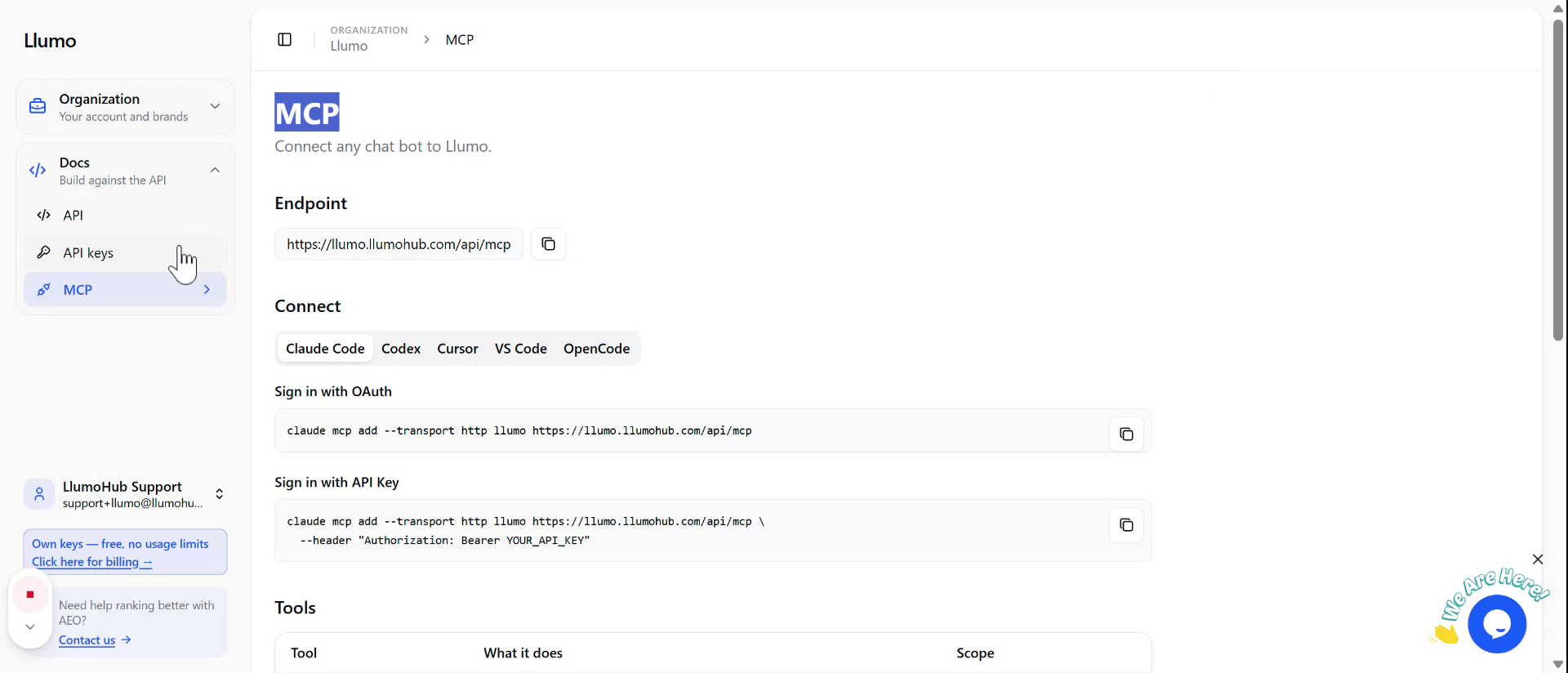
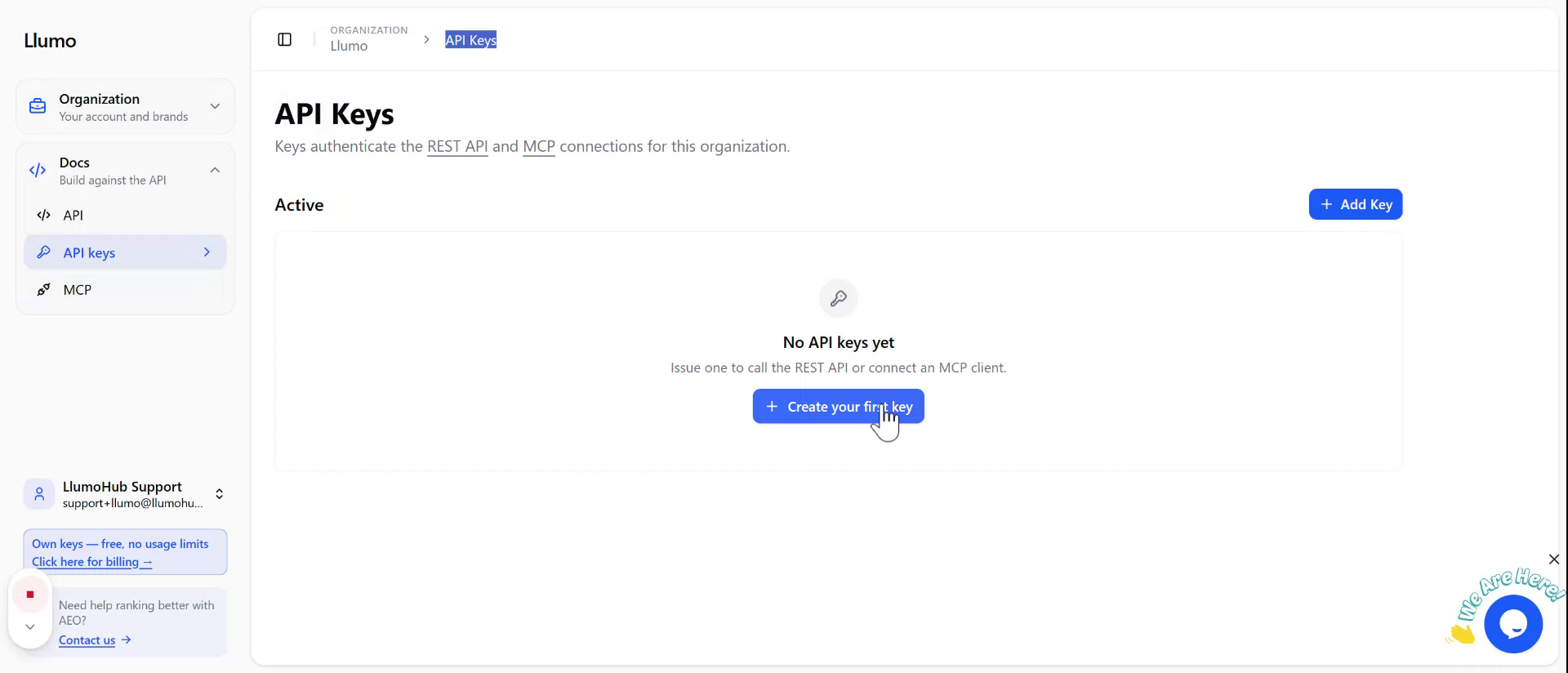
To generate an API key, click API and then select the option to Create your first key (or create a new key, if keys already exist).
Give the key a clear, descriptive name.
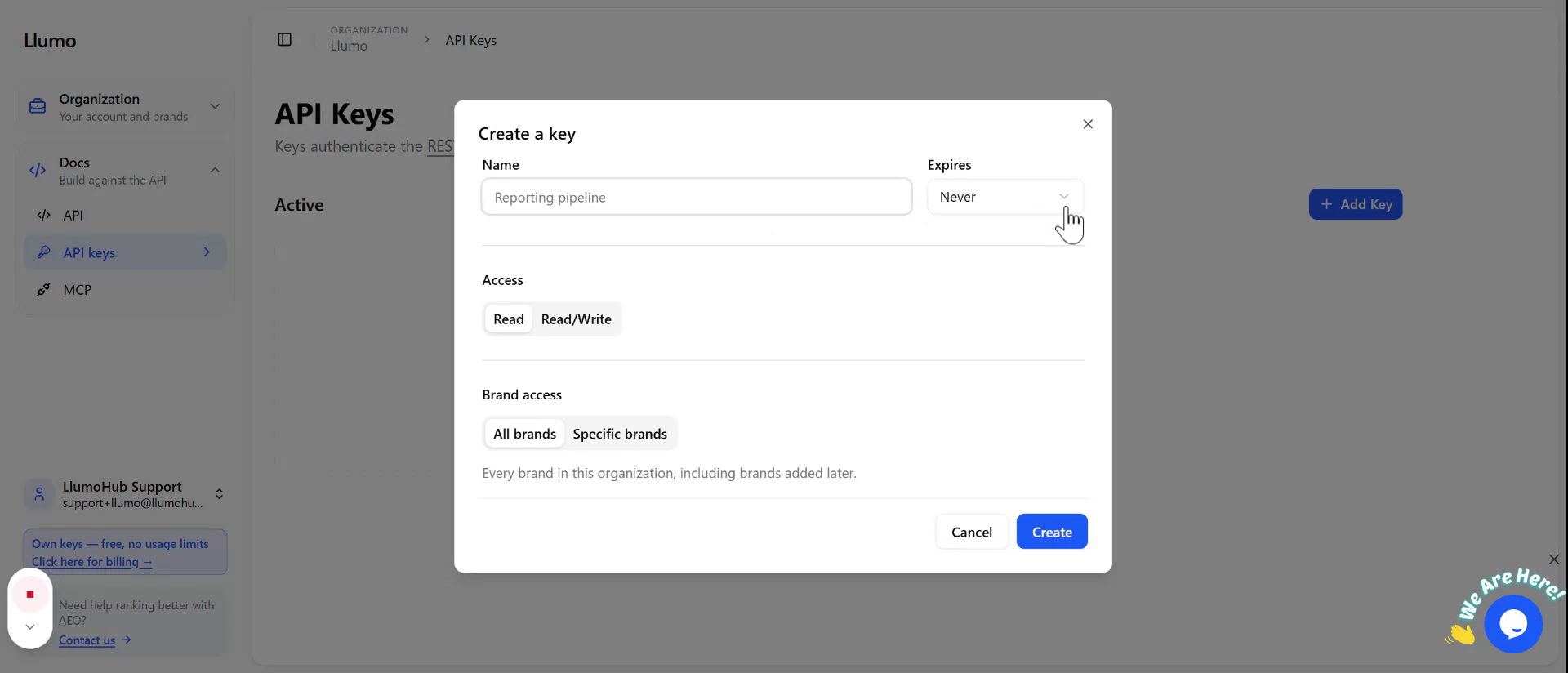
Optionally, set an expiry date if you want the key to be valid only for a specific period.
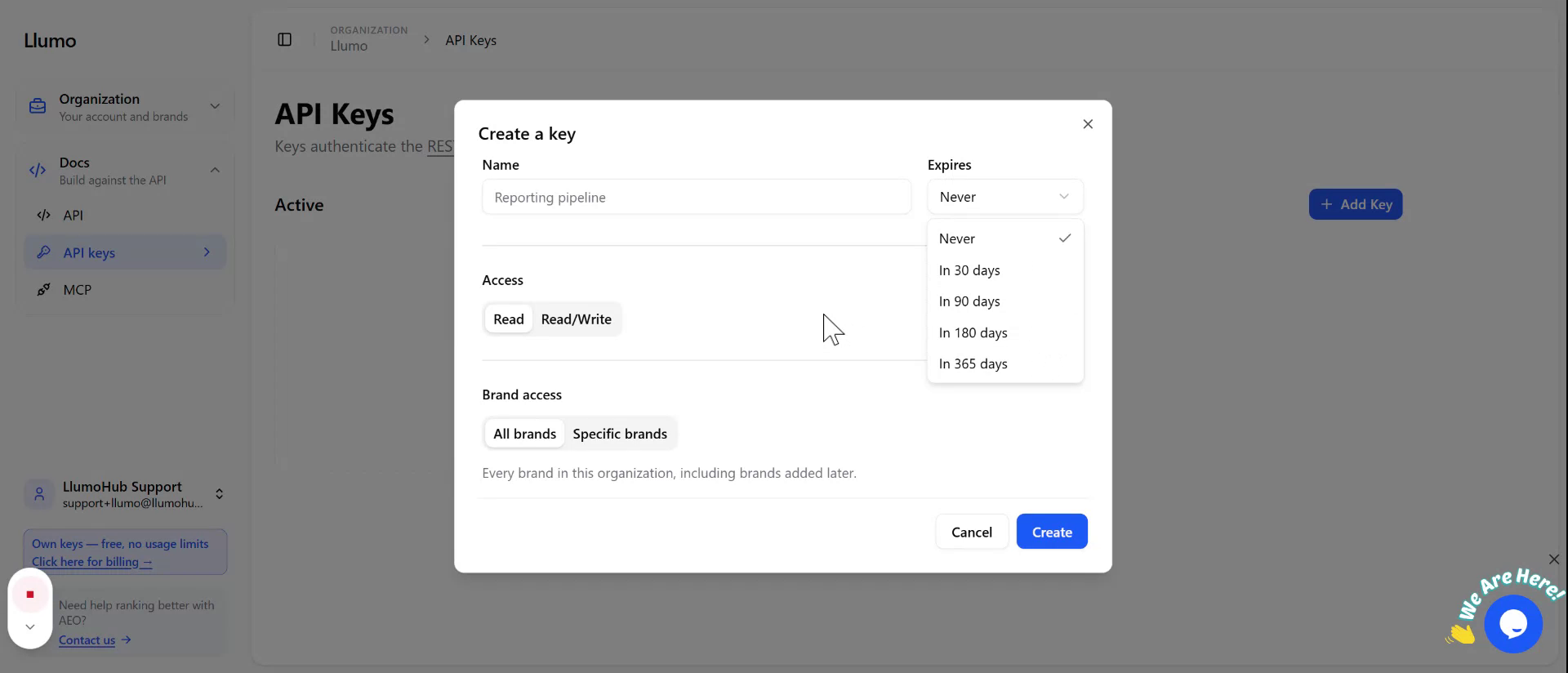
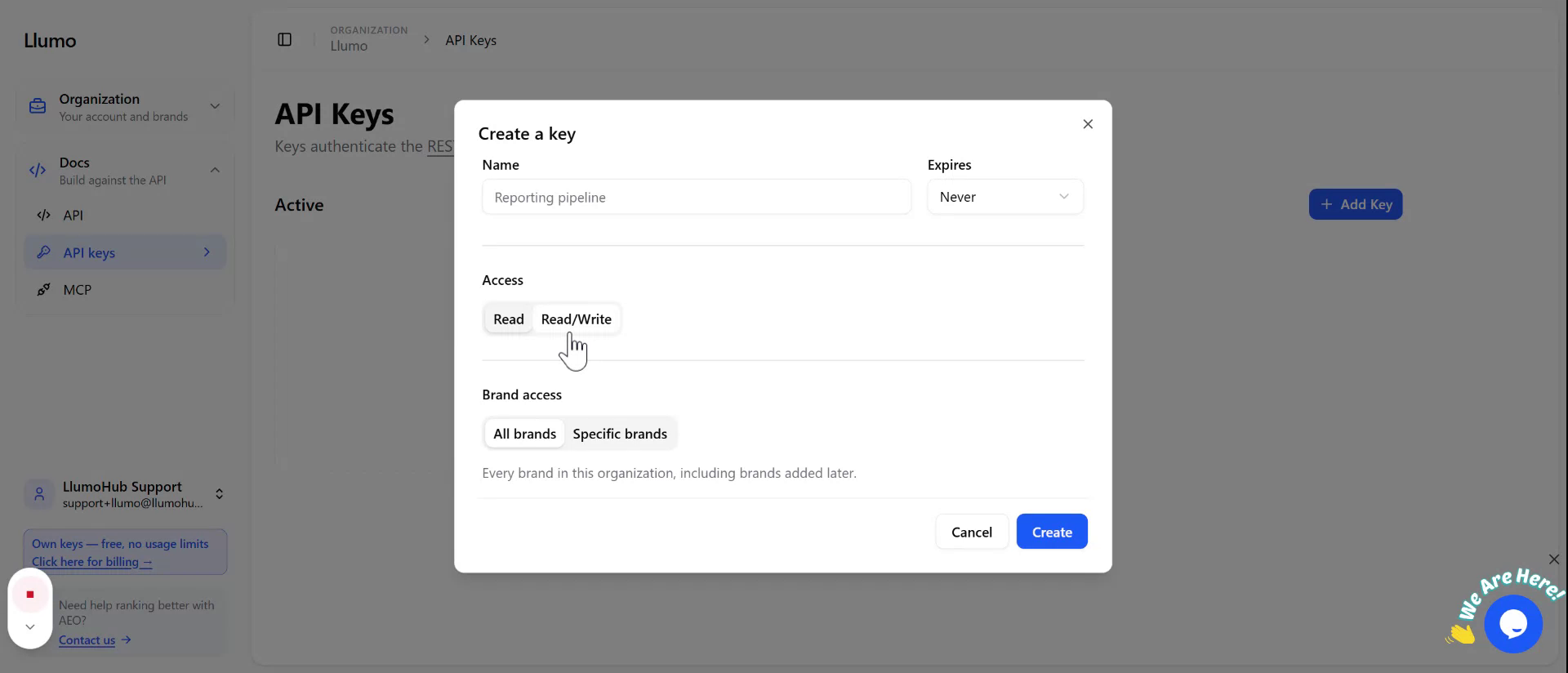
Choose the permissions for the key: either Read only, or Read and Write.
Step 4: Configure Brand Access for the API Key
Decide whether the key should have access to all brands or only specific brands.
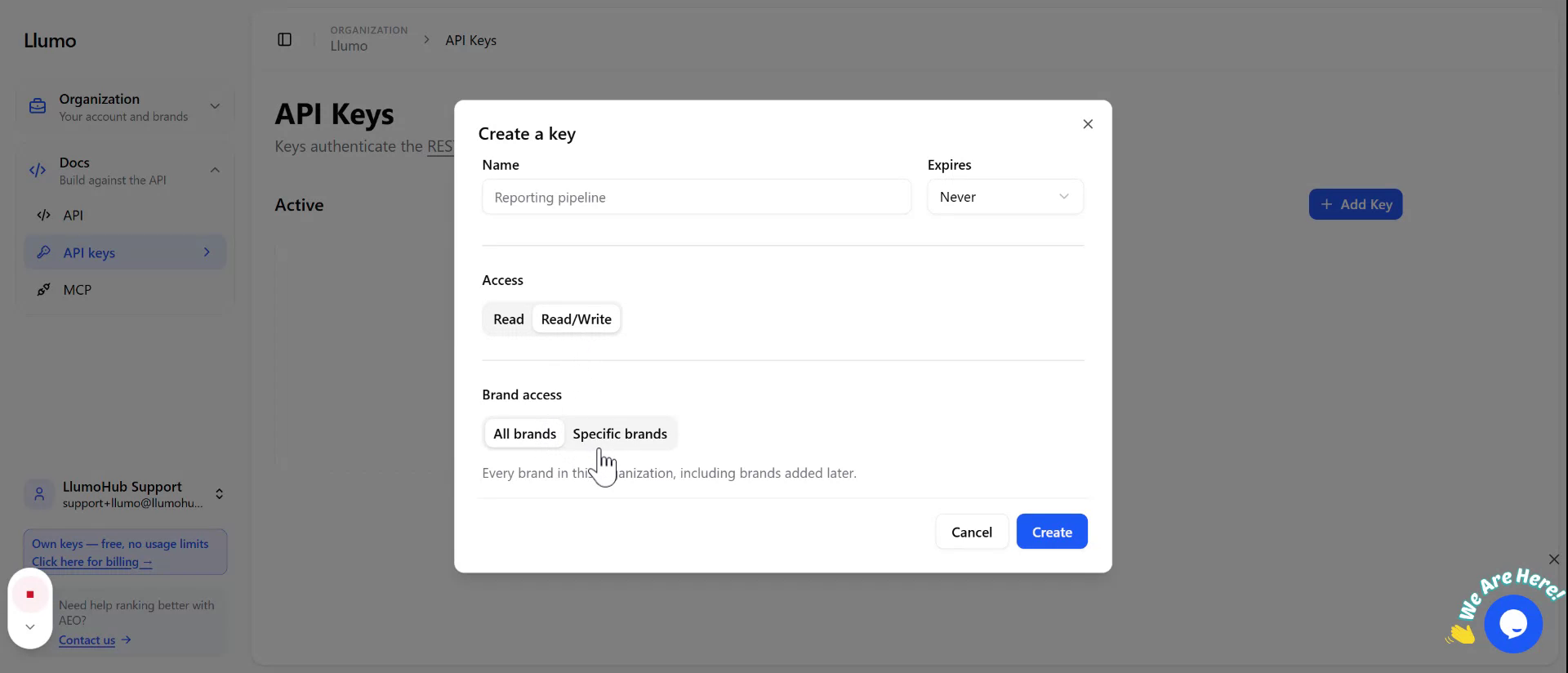
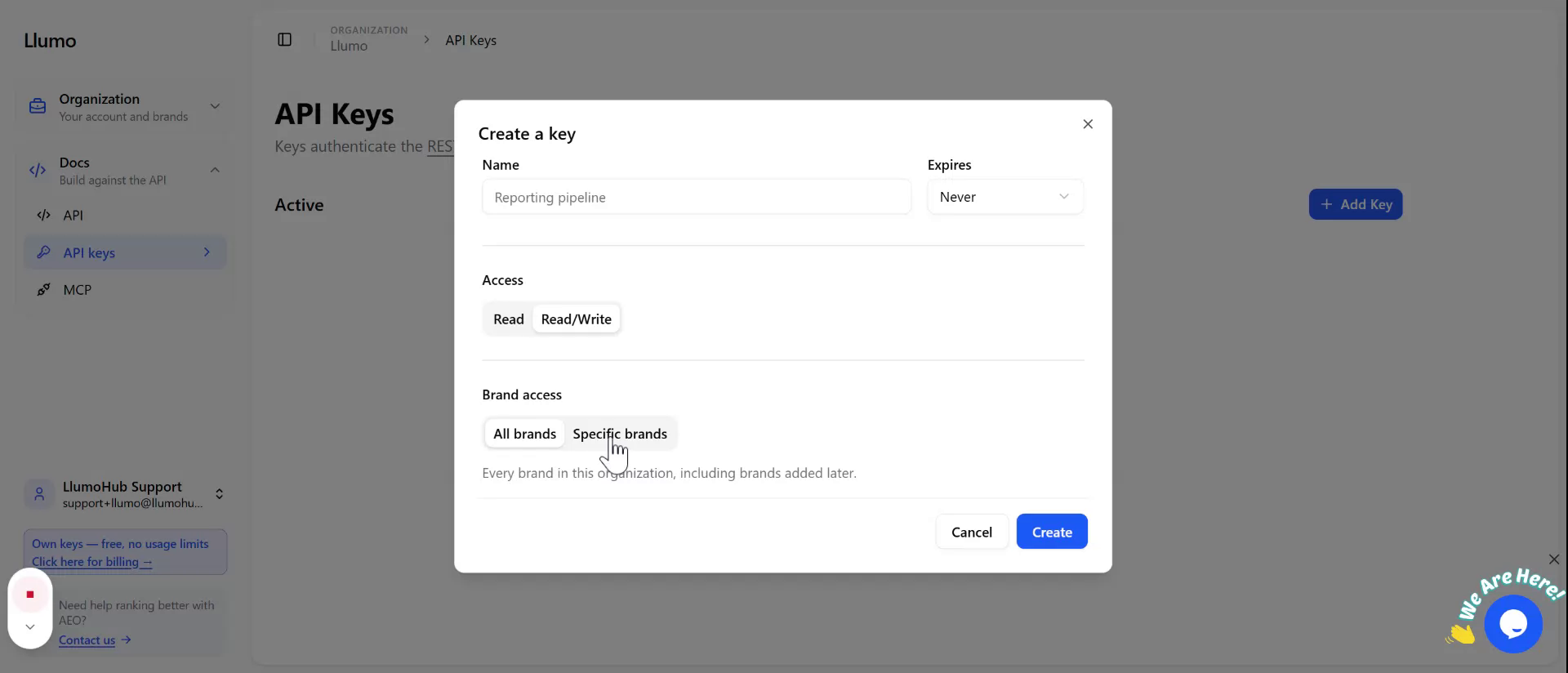
If you select specific brands, use the search function to find and select the brands you have set up.
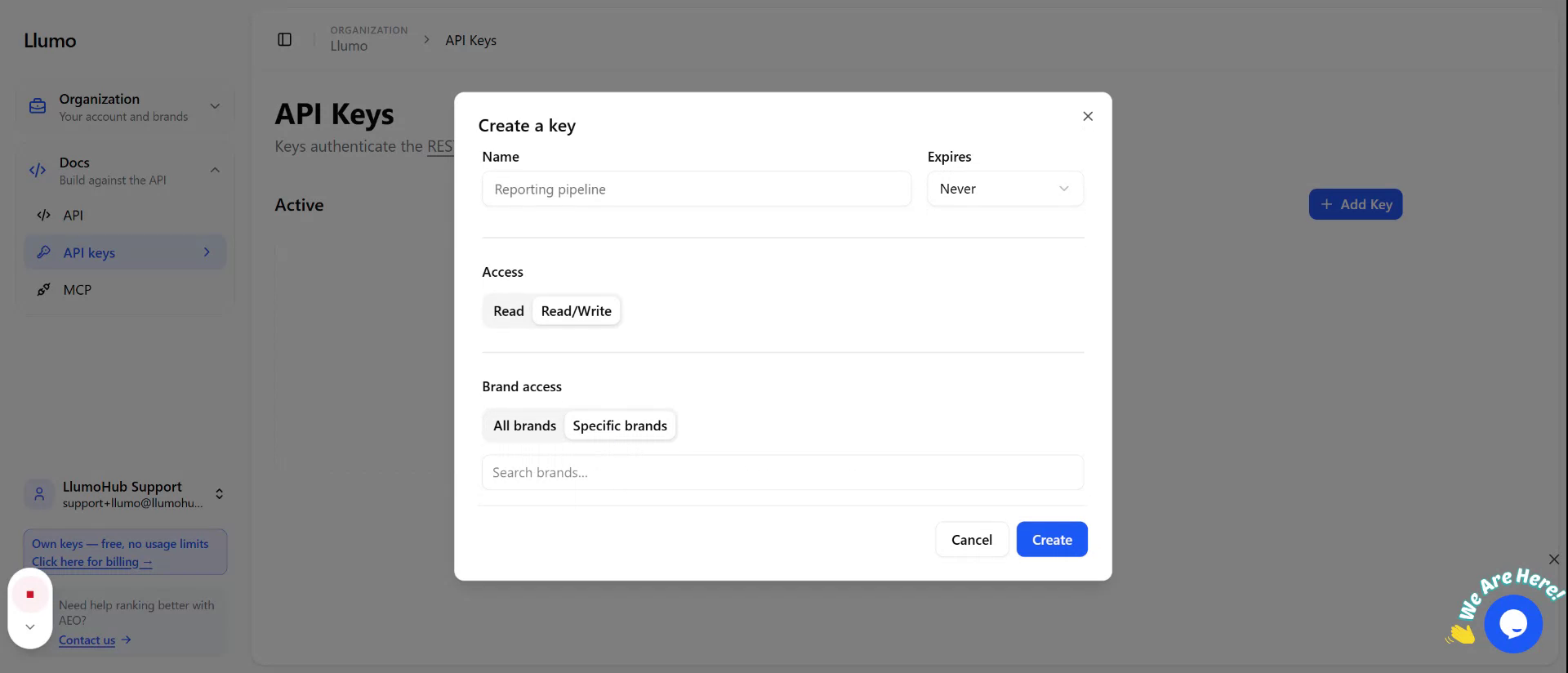
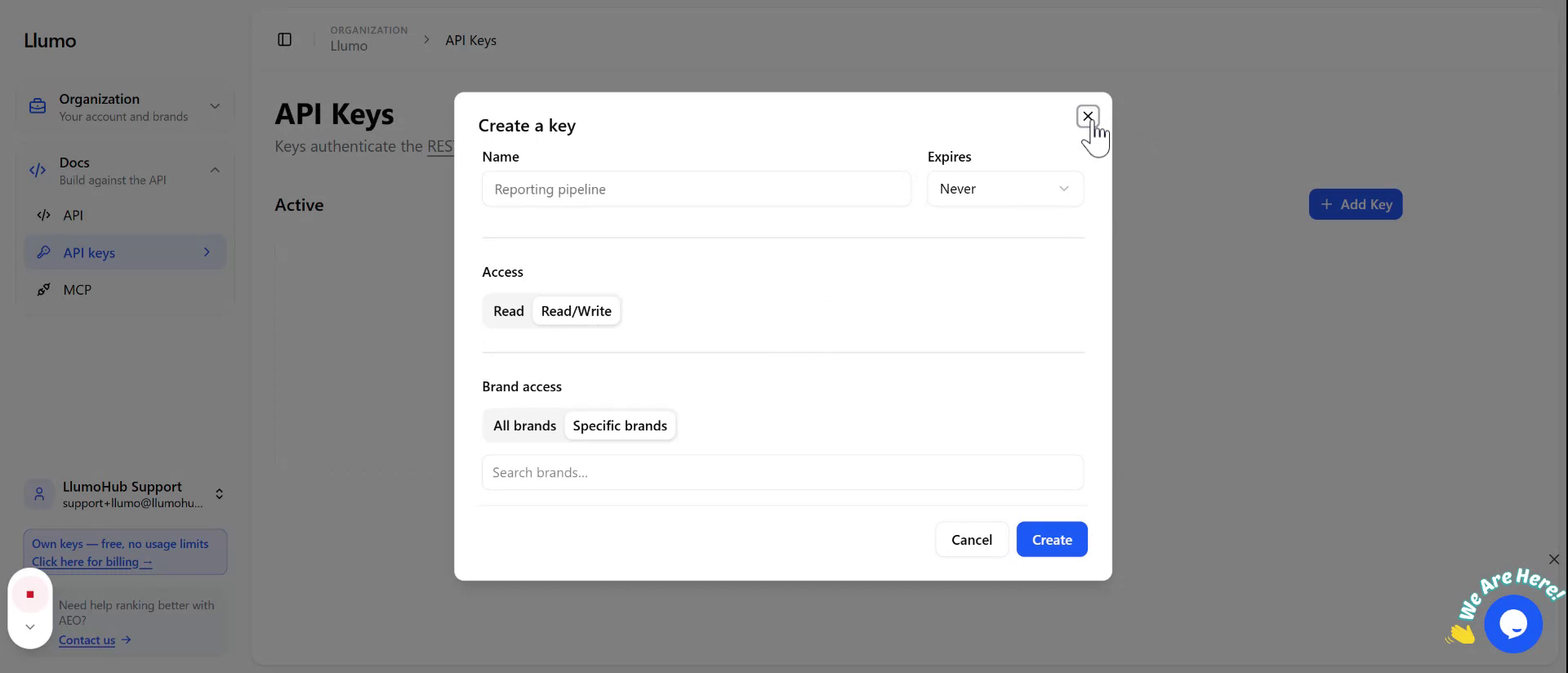
After configuring brand access, finalize and create your API key. Once created, you will be able to use it to access both the API and MCP.