 Llumo Help CenterBack to Llumo
Brand Onboarding and Initial Analysis Setup
This process walks you through creating a new brand, running the initial analysis, and reviewing the first set of performance and visibility insights, including competitors, prompts, citations, and configuration options.
Step 1: Log In and Start Creating a New Brand
After logging in to the platform, go to the area where brands are managed.
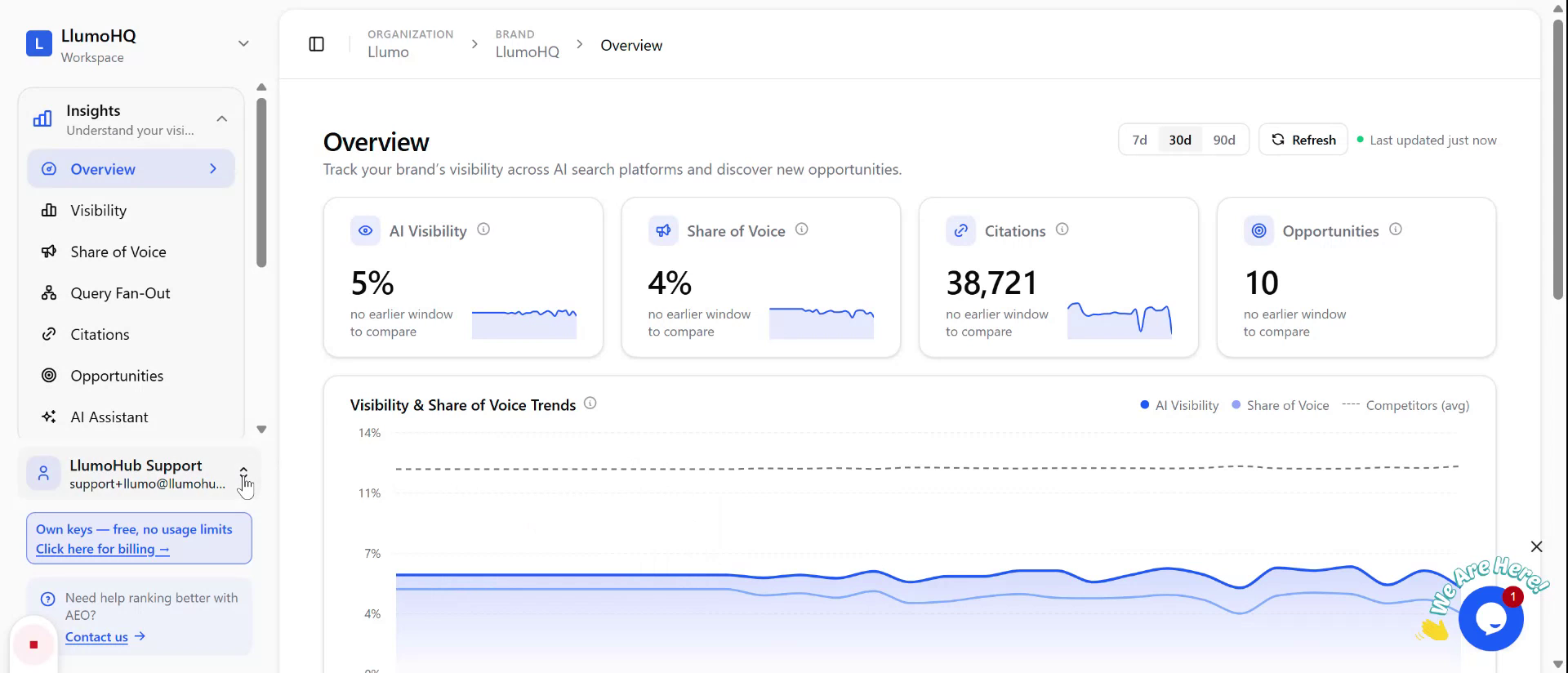
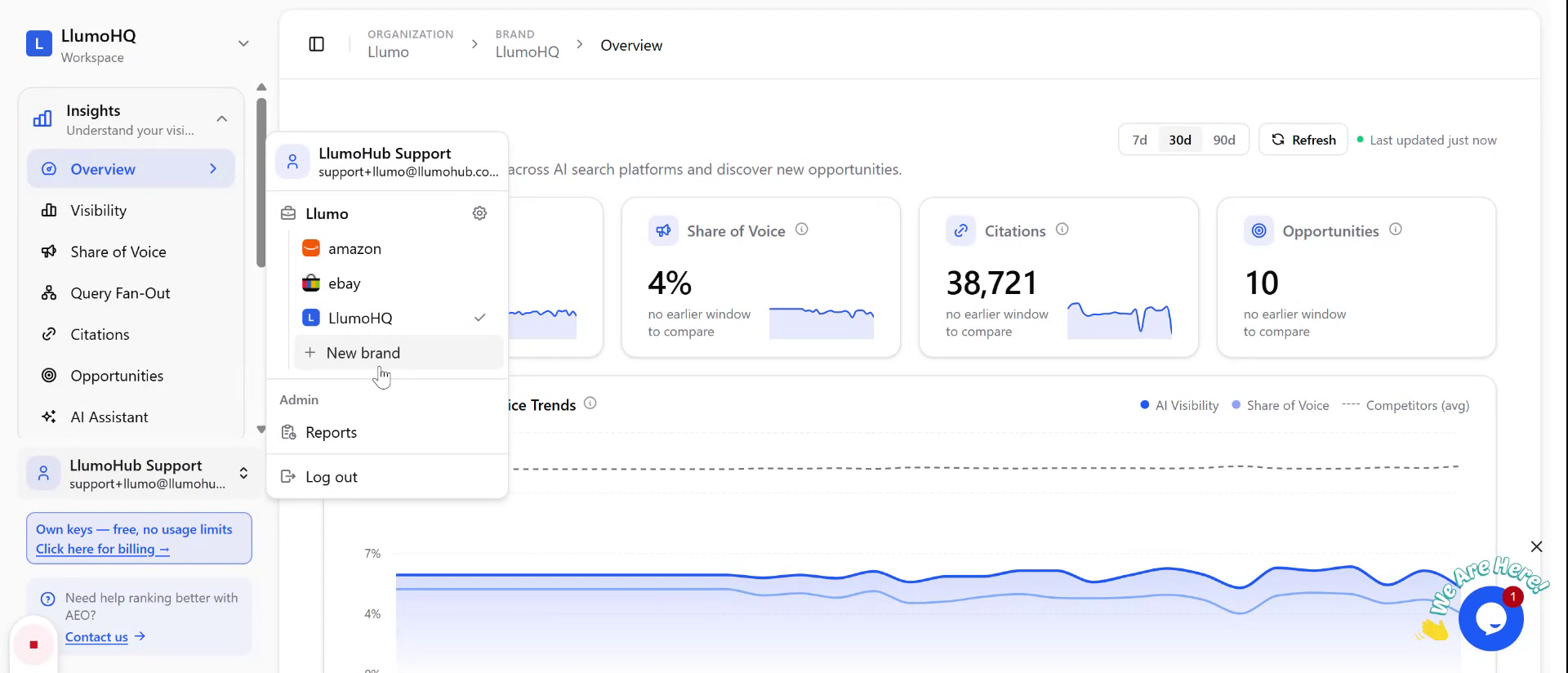
Click the New Brand button to begin setting up a new brand profile.
Step 2: Enter Brand Name and Primary Domain
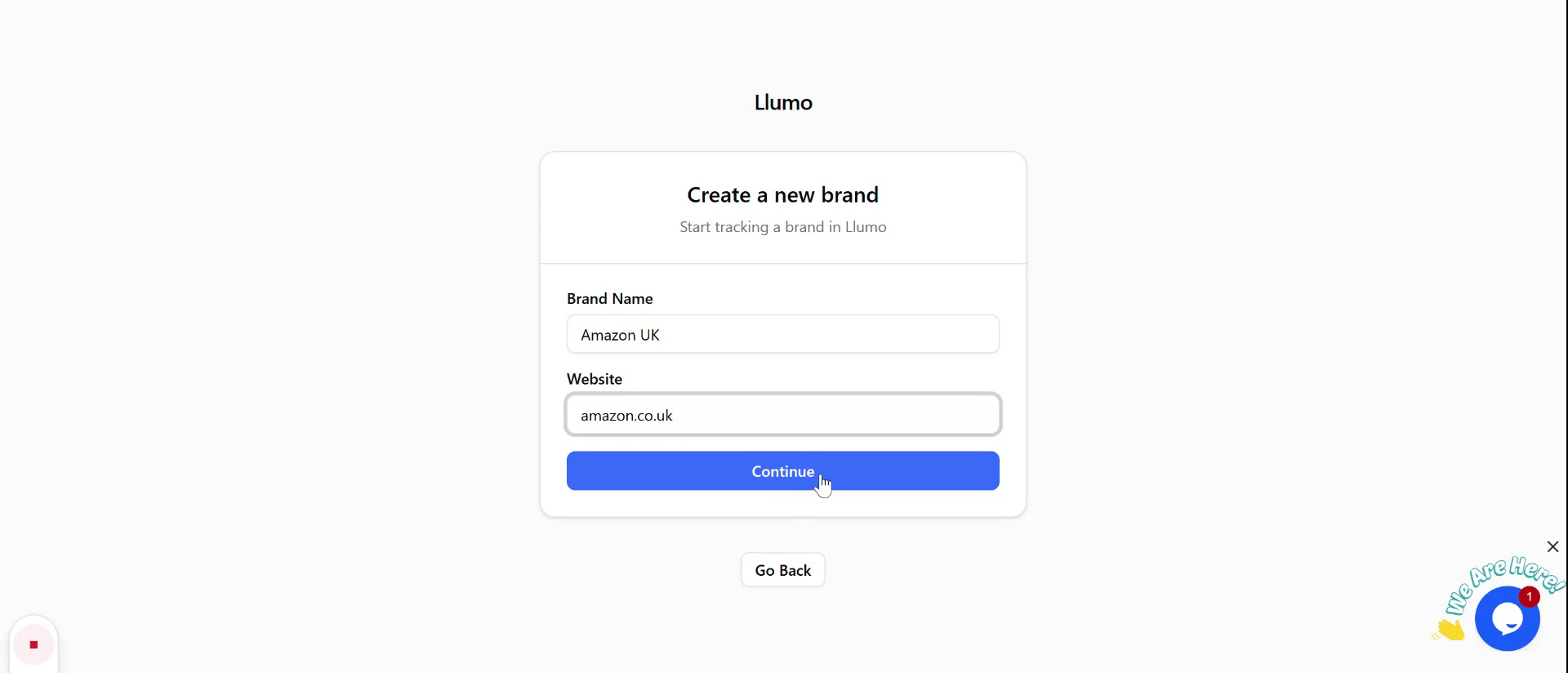
In the brand creation form, enter the brand name (for example,
“Amazon UK”) and the primary domain (for example,
amazon.co.uk).
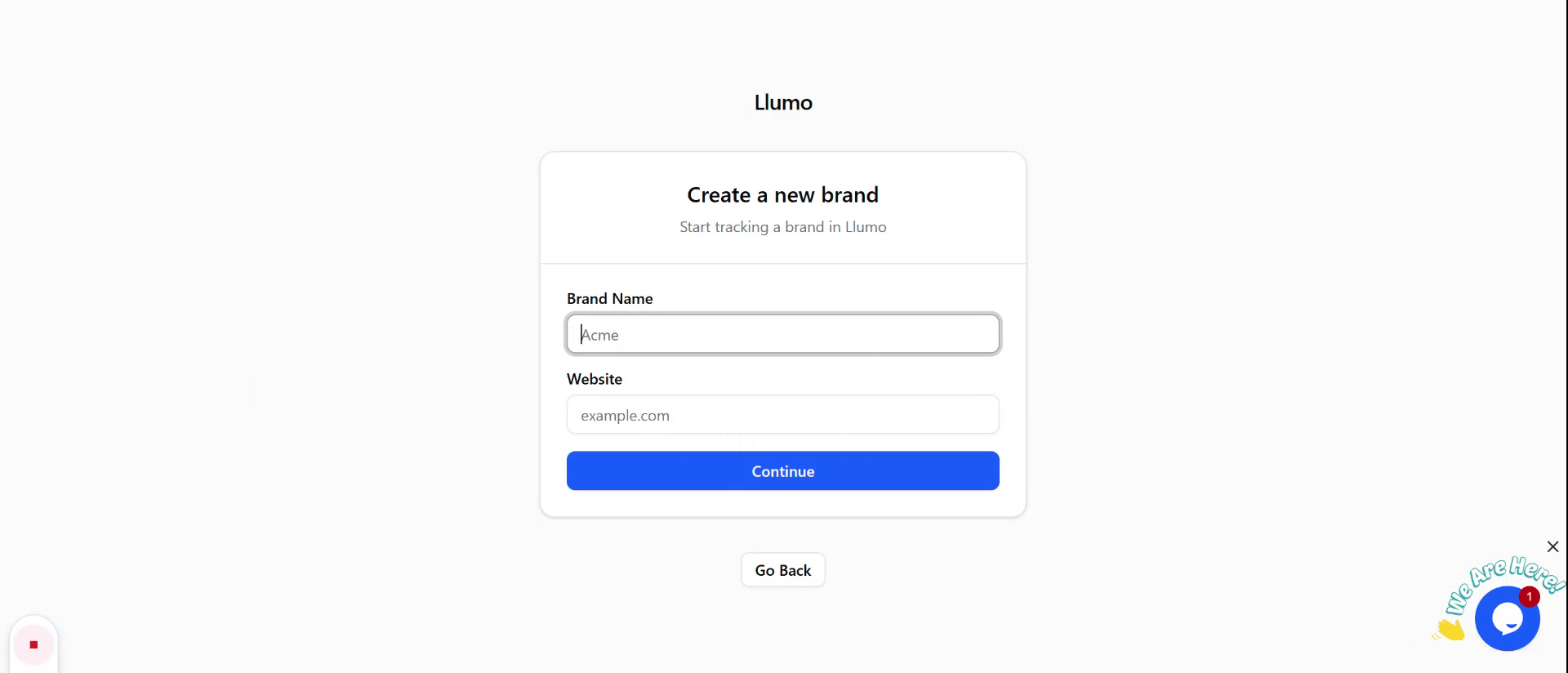
Once you have entered these details, click Continue to proceed to the analysis stage.
Step 3: Run the Initial Brand Analysis
On the next screen, start the first analysis by clicking Analyze Brand.
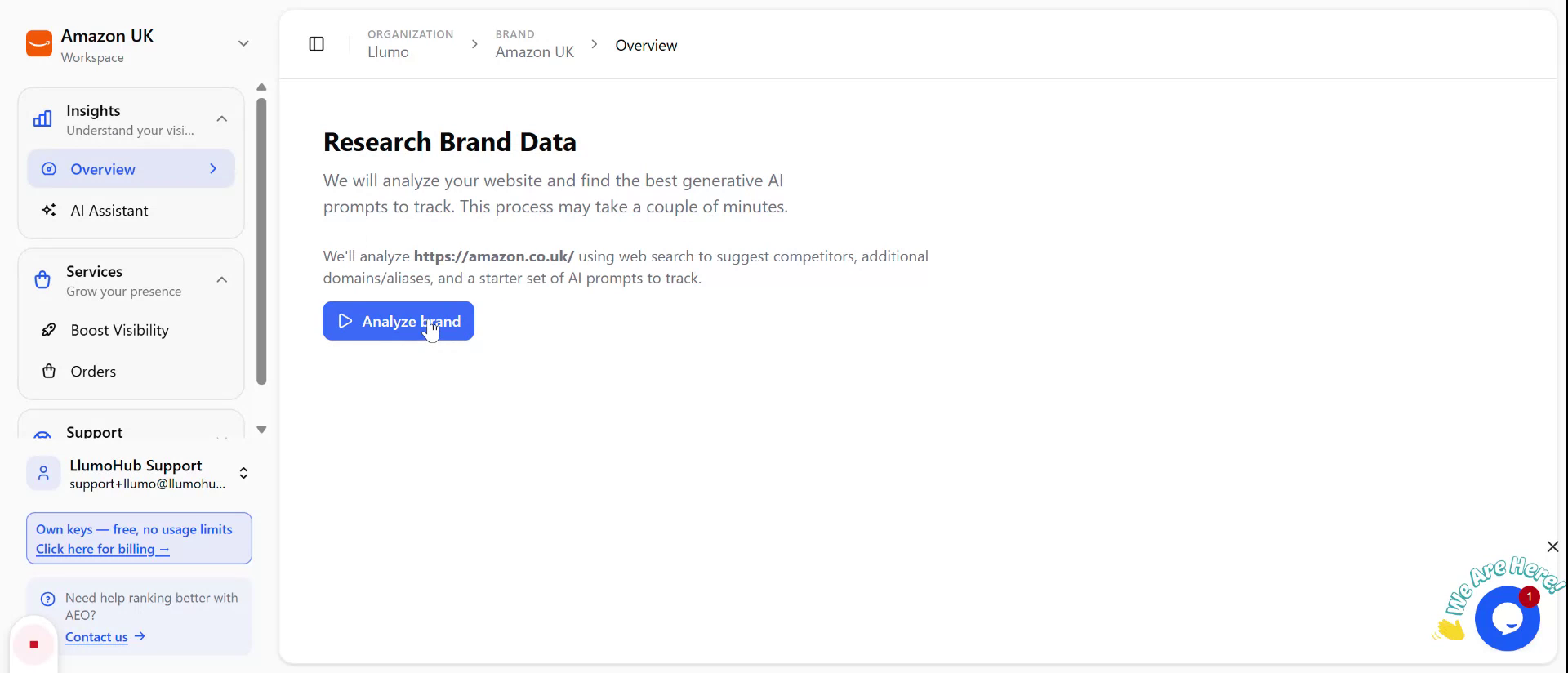
The analysis will run for a few minutes while the system scans the brand. During this process, it will:
- Identify and list relevant competitors
- Generate initial prompts
- Create variations of your URLs so you don’t need to enter them manually
When the analysis completes, the platform will display:
- Brand details
- A list of competitors
- Initial prompts that you can edit or expand
At this stage, you can:
- Add or modify prompts
- Add new competitors
- Add additional domains and URL variations
Step 4: Start Tracking and Wait for the First Evaluation
Once your initial configuration looks correct, enable tracking for the brand so the system can begin its first full evaluation.
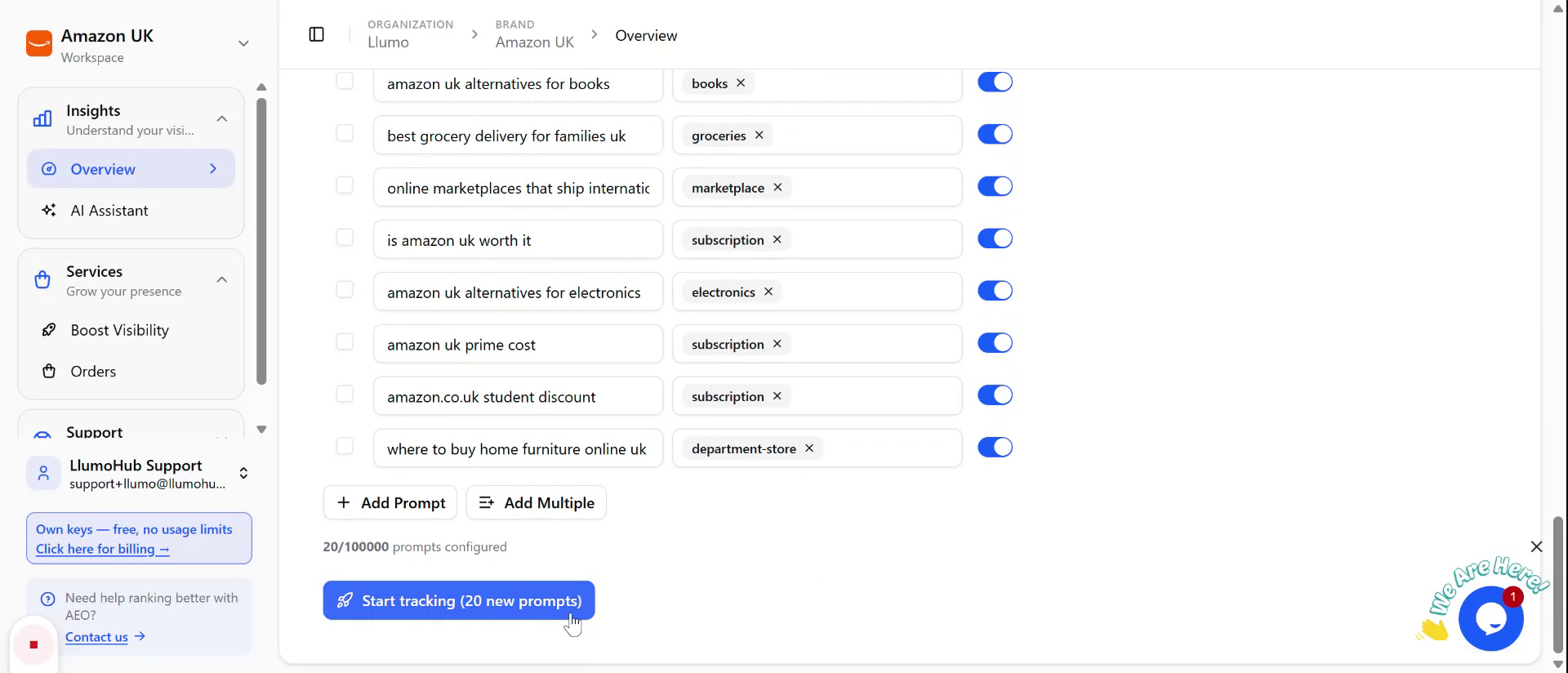
This first evaluation may take a few minutes. Refresh the page periodically to see when the first data starts to appear.
Step 5: Review Visibility, Citations, and Insights
As data starts to populate, you will be able to review key performance and visibility metrics for your brand.
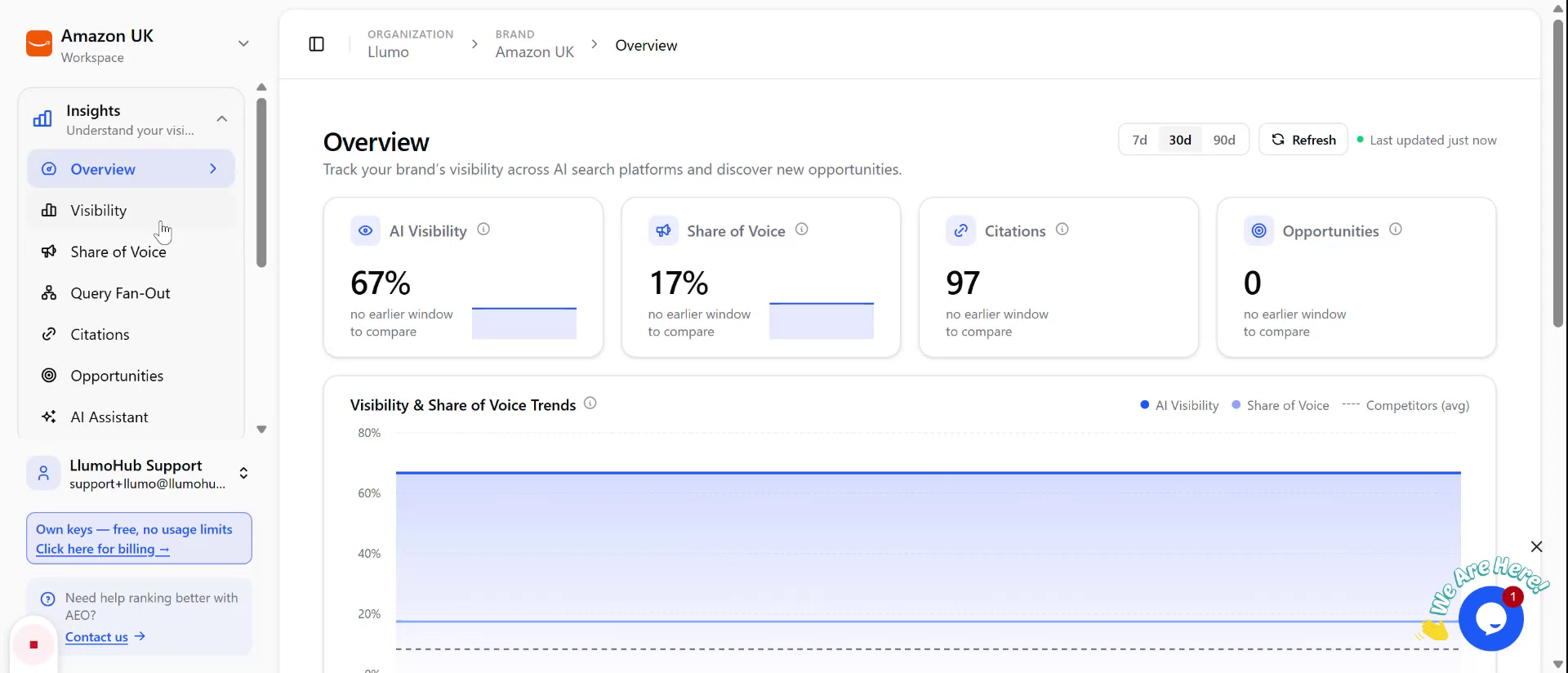
Check the visibility by keyword to understand how the brand is performing across different search terms.
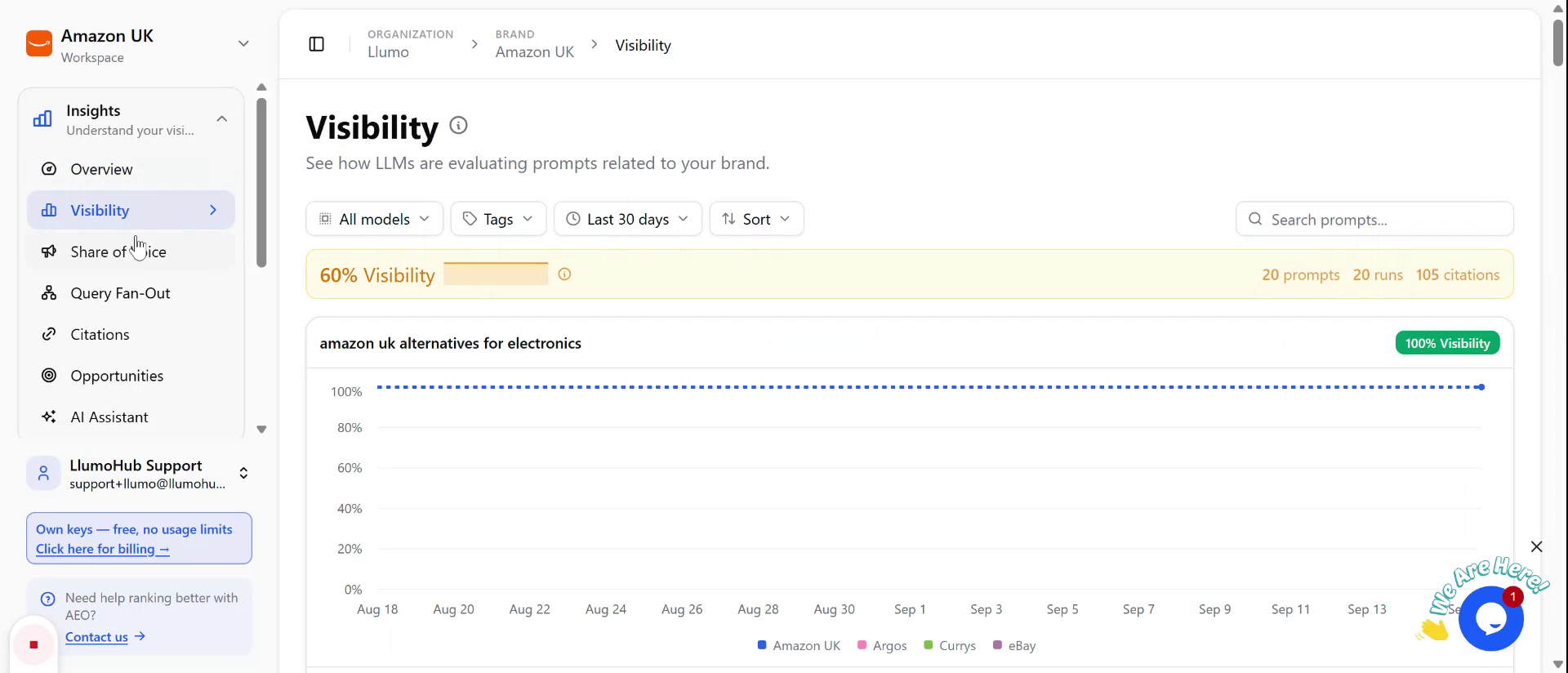
Review the share of voice to see how your brand compares to competitors in terms of presence.
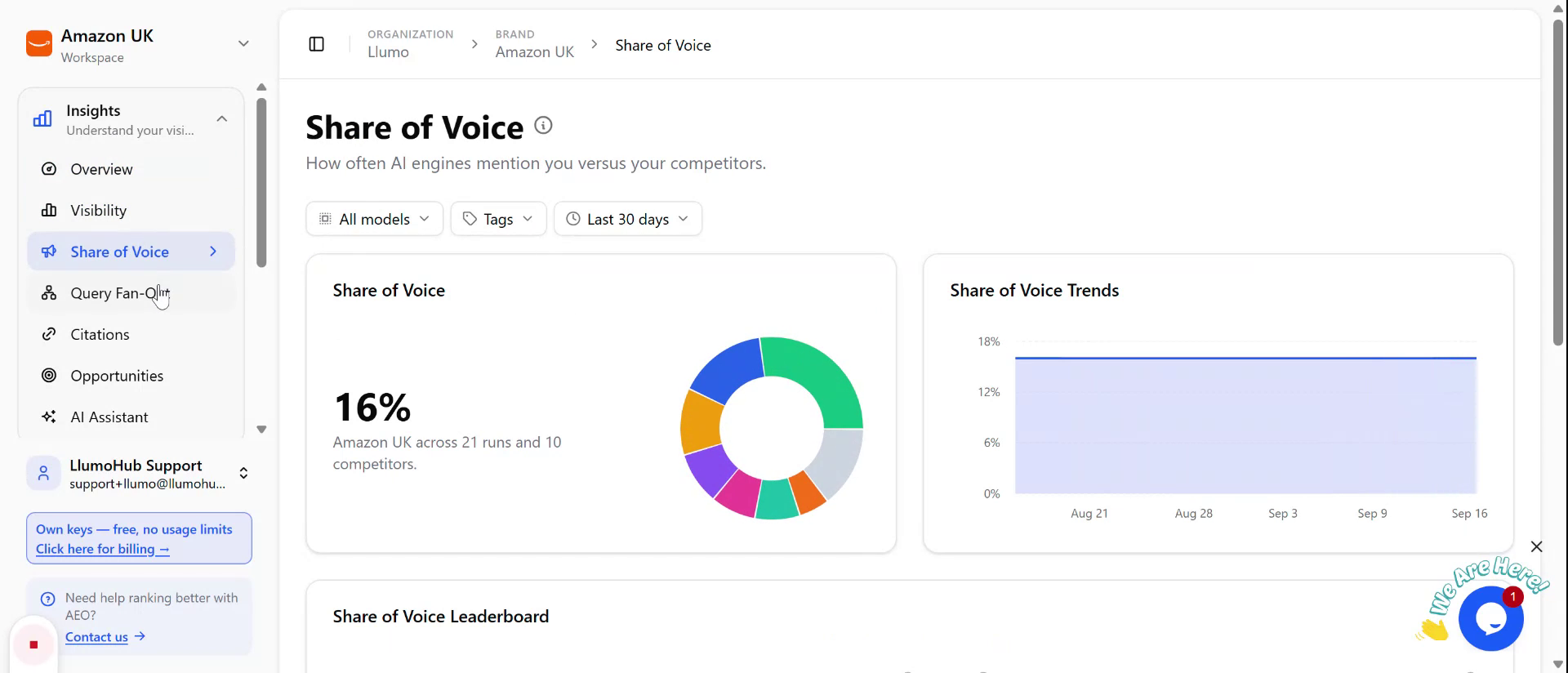
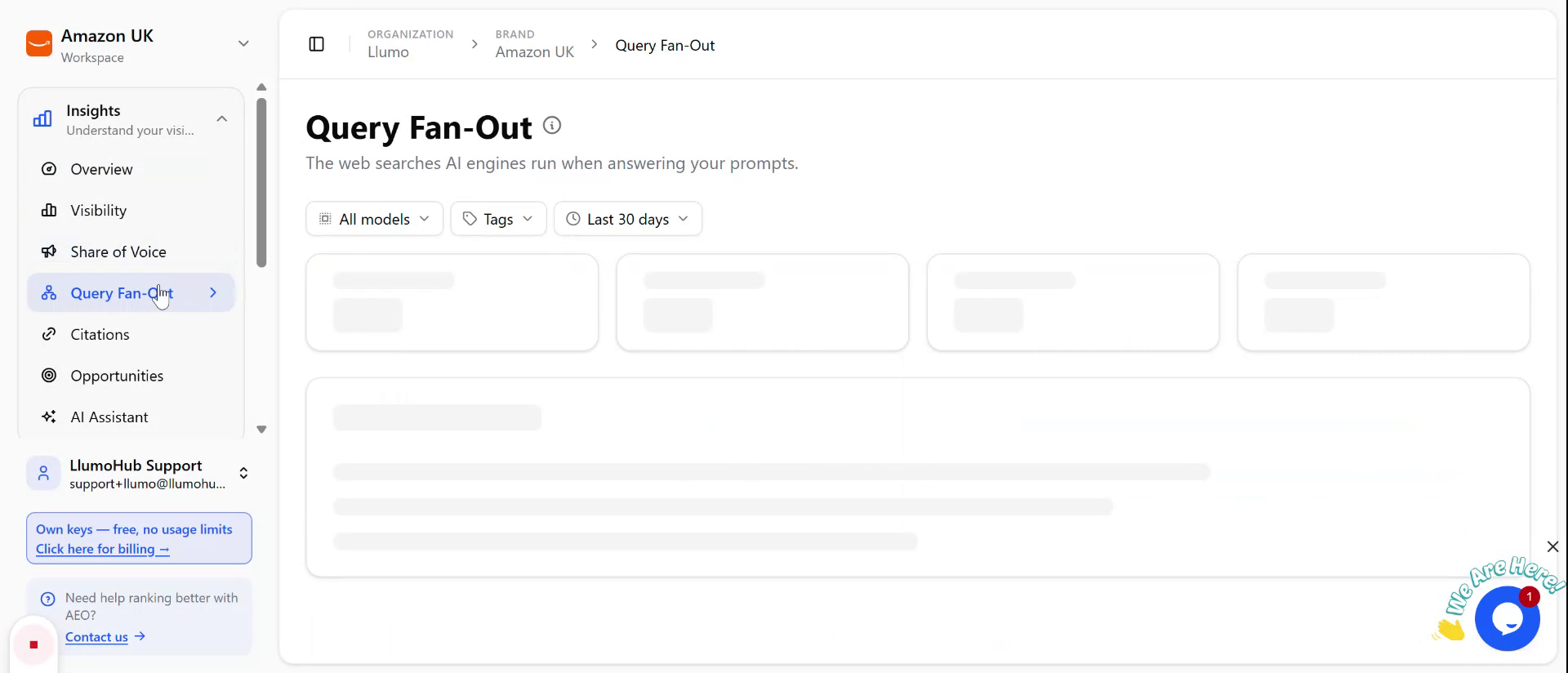
Look at query fanouts and citations to see how often and where your brand is being mentioned or surfaced.
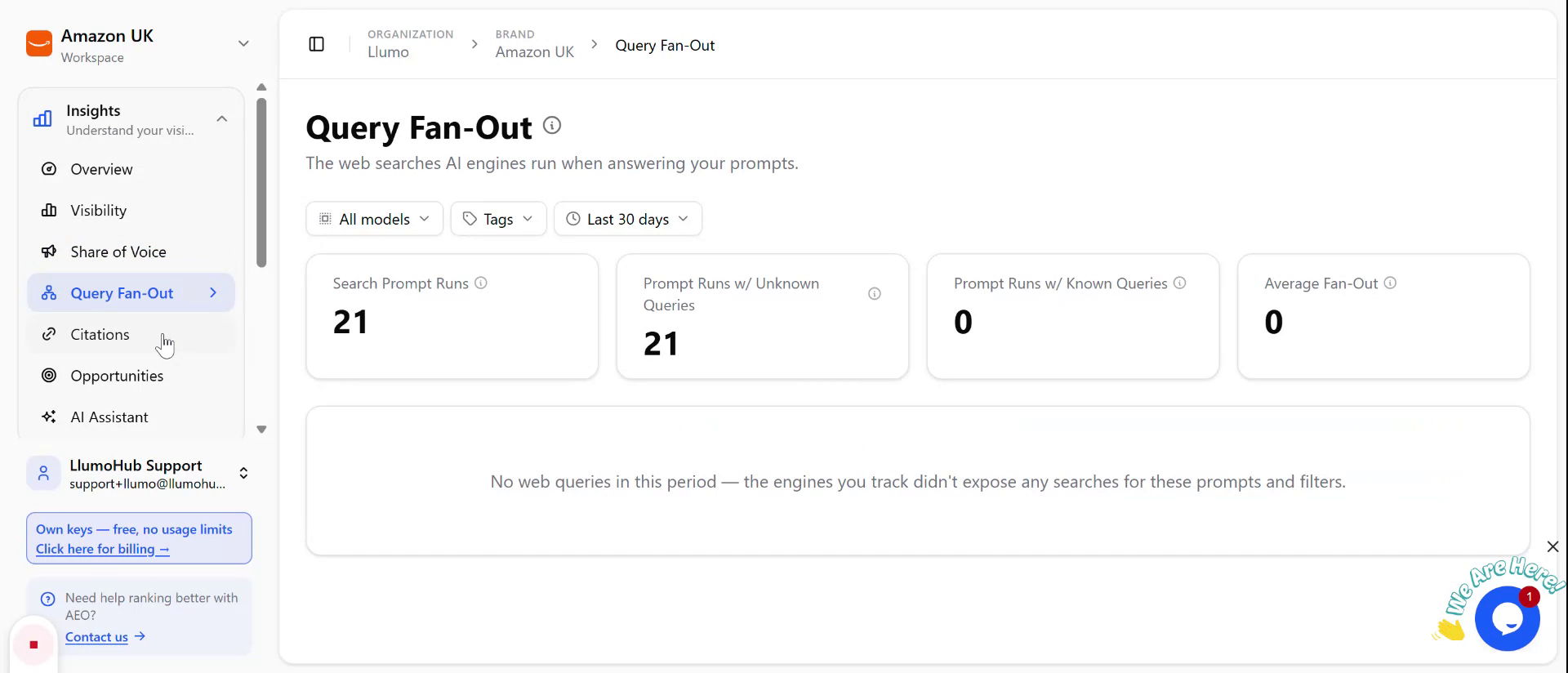
You can also explore:
- Identified opportunities
- Insights and support from the AI assistant
Step 6: Adjust Setup, Competitors, Prompts, and LLMs
Go to the Setup section to refine your configuration.
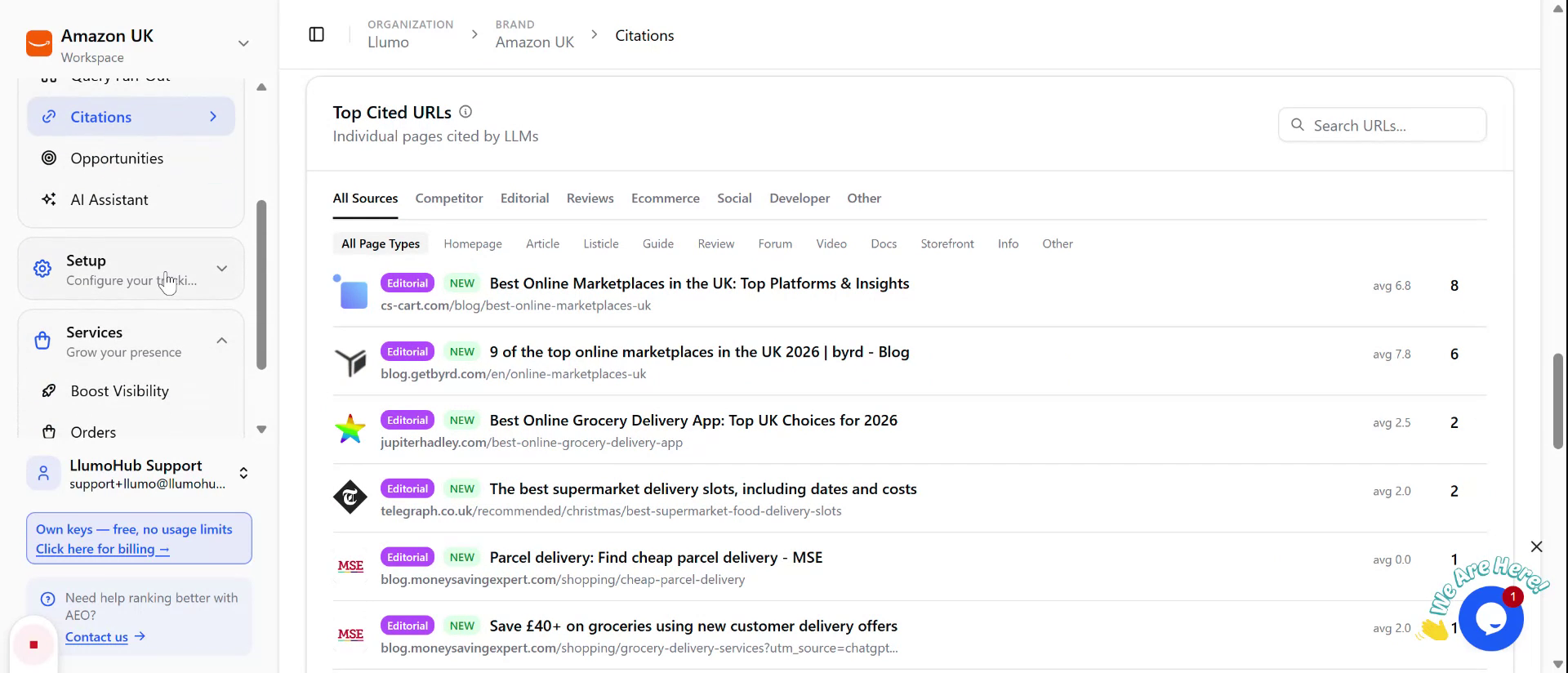
Here you can:
- Amend and expand your list of competitors
- Edit and improve your prompts
- Configure which LLMs you are tracking and using for analysis
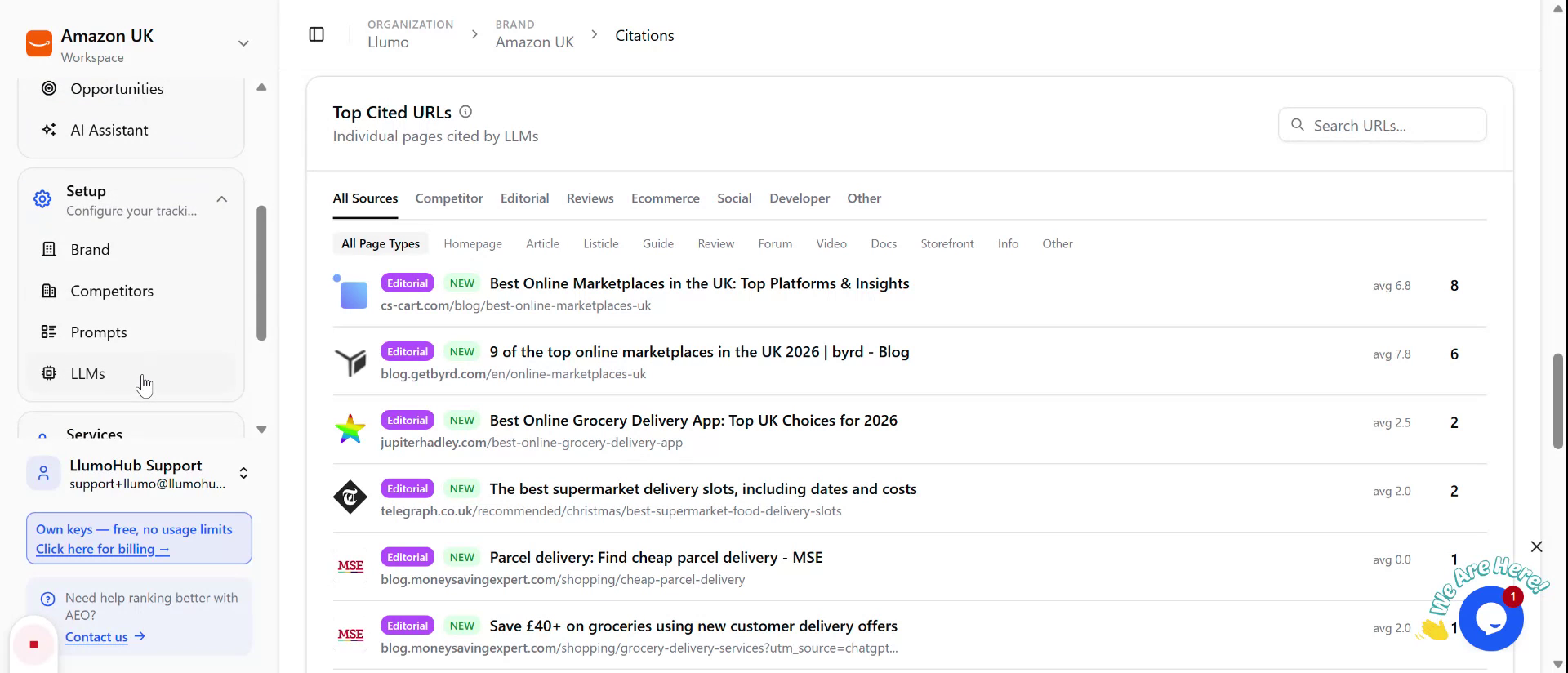
Make any necessary adjustments to ensure the tracking and insights align with your goals.